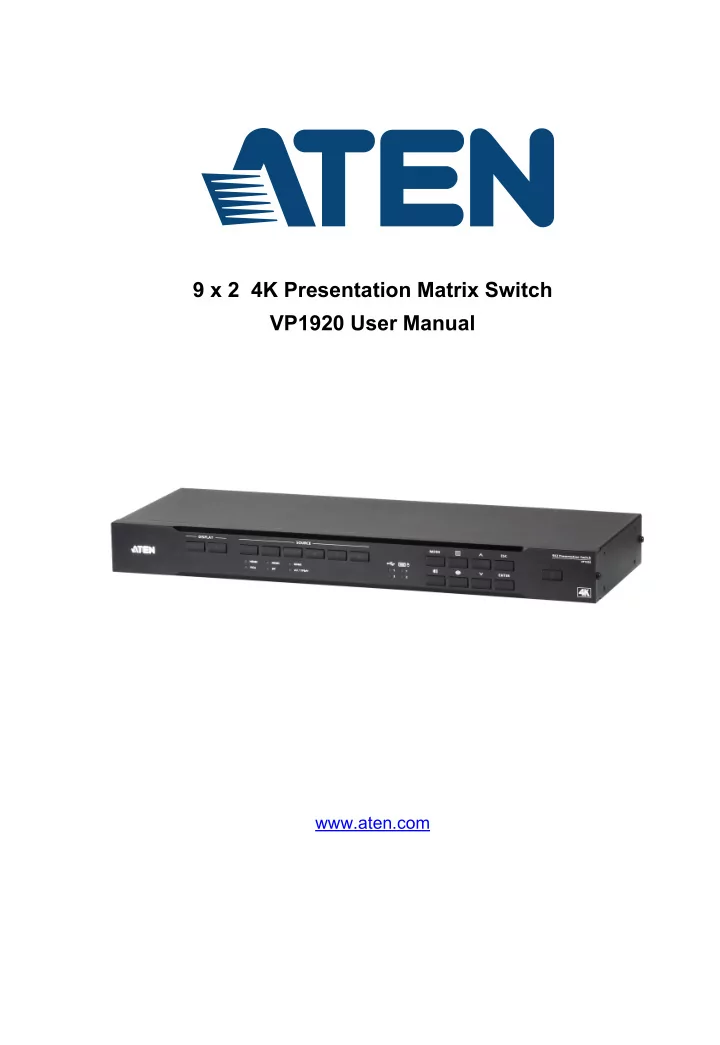
9 x 2 4K Presentation Matrix Switch VP1920 User Manual - - PDF document

9 x 2 4k presentation matrix switch vp1920 user manual
SMART_READER_LITE
LIVE PREVIEW

9 x 2 4K Presentation Matrix Switch VP1920 User Manual - - PDF document

9 x 2 4K Presentation Matrix Switch VP1920 User Manual www.aten.com VP1920 User Manual Preface EMC Information FEDERAL COMMUNICATIONS COMMISSION INTERFERENCE STATEMENT: This equipment has been tested and found to comply with the limits for a


slide-1
SLIDE 1

9 x 2 4K Presentation Matrix Switch VP1920 User Manual

www.aten.com

slide-2
SLIDE 2

VP1920 User Manual ii

Preface

EMC Information

FEDERAL COMMUNICATIONS COMMISSION INTERFERENCE STATEMENT: This equipment has been tested and found to comply with the limits for a Class A digital device, pursuant to Part 15 of the FCC Rules. These limits are designed to provide reasonable protection against harmful interference when the equipment is operated in a commercial environment. This equipment generates, uses, and can radiate radio frequency energy and, if not installed and used in accordance with the instruction manual, may cause harmful interference to radio communications. Operation of this equipment in a residential area is likely to cause harmful interference in which case the user will be required to correct the interference at his own expense. FCC Caution: Any changes or modifications not expressly approved by the party responsible for compliance could void the user's authority to operate this equipment. CE Warning: Operation of this equipment in a residential environment could cause radio interference. This device complies with Part 15 of the FCC Rules. Operation is subject to the following two conditions: (1) this device may not cause harmful interference, and (2) this device must accept any interference received, including interference that may cause undesired operation.

RoHS

This product is RoHS compliant.

slide-3
SLIDE 3

VP1920 User Manual iii

User Information

Online Registration

Be sure to register your product at our online support center:

Telephone Support

For telephone support, call this number:

User Notice

All information, documentation, and specifications contained in this manual are subject to change without prior notification by the manufacturer. The manufacturer makes no representations or warranties, either expressed or implied, with respect to the contents hereof and specifically disclaims any warranties as to merchantability or fitness for any particular purpose. Any of the manufacturer's software described in this manual is sold or licensed as is. Should the programs prove defective following their purchase, the buyer (and not the manufacturer, its distributor, or its dealer), assumes the entire cost of all necessary servicing, repair and any incidental or consequential damages resulting from any defect in the software. The manufacturer of this system is not responsible for any radio and/or TV interference caused by unauthorized modifications to this device. It is the responsibility of the user to correct such interference. The manufacturer is not responsible for any damage incurred in the operation

  • f this system if the correct operational voltage setting was not selected prior to
  • peration. PLEASE VERIFY THAT THE VOLTAGE SETTING IS CORRECT

BEFORE USE. International http://eservice.aten.com International 886-2-8692-6959 China 86-400-810-0-810 Japan 81-3-5615-5811 Korea 82-2-467-6789 North America 1-888-999-ATEN ext 4988 1-949-428-1111

slide-4
SLIDE 4

VP1920 User Manual iv

Package Contents

  • 1 VP1920 9 x 2 4K Presentation Matrix Switch
  • 1 Power Cord
  • 1 IR Receiver
  • 1 IR Remote Control
  • 1 User Instructions

Note: Make sure that all of the items are present and in good order. If anything

is missing or was damaged in shipping, please contact your dealer for further assistance.

slide-5
SLIDE 5

VP1920 User Manual v

Table of Contents

Preface

EMC Information. . . . . . . . . . . . . . . . . . . . . . . . . . . . . . . . . . . . . . . . . . . . . ii RoHS . . . . . . . . . . . . . . . . . . . . . . . . . . . . . . . . . . . . . . . . . . . . . . . . . . . . . ii User Information . . . . . . . . . . . . . . . . . . . . . . . . . . . . . . . . . . . . . . . . . . . .iii Package Contents . . . . . . . . . . . . . . . . . . . . . . . . . . . . . . . . . . . . . . . . . . .iv About this Manual . . . . . . . . . . . . . . . . . . . . . . . . . . . . . . . . . . . . . . . . . . vii Conventions . . . . . . . . . . . . . . . . . . . . . . . . . . . . . . . . . . . . . . . . . . . . . . . viii Product Information . . . . . . . . . . . . . . . . . . . . . . . . . . . . . . . . . . . . . . . . . viii

  • 1. Introduction
  • Overview. . . . . . . . . . . . . . . . . . . . . . . . . . . . . . . . . . . . . . . . . . . . . . . . . . . 1

Benefits . . . . . . . . . . . . . . . . . . . . . . . . . . . . . . . . . . . . . . . . . . . . . . . . . . . 2 Features . . . . . . . . . . . . . . . . . . . . . . . . . . . . . . . . . . . . . . . . . . . . . . . . . . . 3 Planning the Installation . . . . . . . . . . . . . . . . . . . . . . . . . . . . . . . . . . . . . . . 5 Required Equipment . . . . . . . . . . . . . . . . . . . . . . . . . . . . . . . . . . . . . . . 5 Optional Equipment. . . . . . . . . . . . . . . . . . . . . . . . . . . . . . . . . . . . . . . . 5

  • 2. Hardware Setup

Components . . . . . . . . . . . . . . . . . . . . . . . . . . . . . . . . . . . . . . . . . . . . . . . . 7 VP1920 Front View . . . . . . . . . . . . . . . . . . . . . . . . . . . . . . . . . . . . . . . . 7 VP1920 Rear View . . . . . . . . . . . . . . . . . . . . . . . . . . . . . . . . . . . . . . . . 9 IR Remote Control . . . . . . . . . . . . . . . . . . . . . . . . . . . . . . . . . . . . . . . 11 LED Indicators . . . . . . . . . . . . . . . . . . . . . . . . . . . . . . . . . . . . . . . . . . 13 Rack Mounting . . . . . . . . . . . . . . . . . . . . . . . . . . . . . . . . . . . . . . . . . . . . . 14 Installation . . . . . . . . . . . . . . . . . . . . . . . . . . . . . . . . . . . . . . . . . . . . . . . . 15

  • 3. Operation
  • Overview. . . . . . . . . . . . . . . . . . . . . . . . . . . . . . . . . . . . . . . . . . . . . . . . . . 17

Operation Considerations . . . . . . . . . . . . . . . . . . . . . . . . . . . . . . . . . . 17 Switching the Display Source . . . . . . . . . . . . . . . . . . . . . . . . . . . . . . . . . . 17 Auto Switching . . . . . . . . . . . . . . . . . . . . . . . . . . . . . . . . . . . . . . . . . . 17 Manual Switching . . . . . . . . . . . . . . . . . . . . . . . . . . . . . . . . . . . . . . . . 17 Changing the Source for Mirror Mode. . . . . . . . . . . . . . . . . . . . . . . . . 18 Display Modes . . . . . . . . . . . . . . . . . . . . . . . . . . . . . . . . . . . . . . . . . . . . . 19 Understanding Display Modes . . . . . . . . . . . . . . . . . . . . . . . . . . . . . . 19 Setting the Display Mode . . . . . . . . . . . . . . . . . . . . . . . . . . . . . . . . . . 19 Operating PCs/Laptops/Tablets . . . . . . . . . . . . . . . . . . . . . . . . . . . . . . . . 20 Hardware Setup . . . . . . . . . . . . . . . . . . . . . . . . . . . . . . . . . . . . . . . . . 20

slide-6
SLIDE 6

VP1920 User Manual vi

  • Operation. . . . . . . . . . . . . . . . . . . . . . . . . . . . . . . . . . . . . . . . . . . . . . .20

Locking the Panel Pushbuttons . . . . . . . . . . . . . . . . . . . . . . . . . . . . . . . .21 Manual Lock . . . . . . . . . . . . . . . . . . . . . . . . . . . . . . . . . . . . . . . . . . . .21 Automatic Lock . . . . . . . . . . . . . . . . . . . . . . . . . . . . . . . . . . . . . . . . . .21 System Settings . . . . . . . . . . . . . . . . . . . . . . . . . . . . . . . . . . . . . . . . . . . .22

Appendix

Safety Instructions. . . . . . . . . . . . . . . . . . . . . . . . . . . . . . . . . . . . . . . . . . .25 General . . . . . . . . . . . . . . . . . . . . . . . . . . . . . . . . . . . . . . . . . . . . . . . .25 Rack Mounting . . . . . . . . . . . . . . . . . . . . . . . . . . . . . . . . . . . . . . . . . .27 Technical Support . . . . . . . . . . . . . . . . . . . . . . . . . . . . . . . . . . . . . . . . . .28 Specifications . . . . . . . . . . . . . . . . . . . . . . . . . . . . . . . . . . . . . . . . . . . . . .29 Limited Warranty . . . . . . . . . . . . . . . . . . . . . . . . . . . . . . . . . . . . . . . . . . .31

slide-7
SLIDE 7

VP1920 User Manual vii

About this Manual

This user manual is provided to help you get the most from the VP1920 unit. It covers all aspects of installation, configuration, and operation. An overview of the information found in the manual is provided below. Chapter 1, Introduction introduces you to the VP1920. Its purpose, features, and installation considerations are described. Chapter 2, Hardware Setup describes the hardware components of the VP1920 and the supplied IR remote control, and details the steps that are necessary to quickly and safely set up the VP1920. Chapter 3, Operation provides details on panel operations and system settings. Appendix provides a list of safety instructions and precautions, contact information for ATEN technical support, product specifications, and other technical information. Note:

  • Read this manual thoroughly and follow the installation and operation

procedures carefully to prevent any damage to the unit or any connected devices.

  • ATEN regularly updates its product documentation for new features and
  • fixes. For an up-to-date VP1920 documentation, visit

http://www.aten.com/global/en/

slide-8
SLIDE 8

VP1920 User Manual viii

Conventions

This manual uses the following conventions:

Product Information

For information about all ATEN products and how they can help you connect without limits, visit ATEN on the Web or contact an ATEN Authorized Reseller. Visit ATEN on the Web for a list of locations and telephone numbers:

Monospaced Indicates text that you should key in. [ ] Indicates keys you should press. For example, [Enter] means to press the Enter key. If keys need to be chorded, they appear together in the same bracket with a plus sign between them: [Ctrl+Alt]. 1. Numbered lists represent procedures with sequential steps. ♦ Bullet lists provide information, but do not involve sequential steps. → Indicates selecting the option (on a menu or dialog box, for example), that comes next. For example, Start → Run means to

  • pen the Start menu, and then select Run.

Indicates critical information. International http://www.aten.com North America http://www.aten-usa.com

slide-9
SLIDE 9

1

Chapter 1

Introduction

Overview

The ATEN VP1920 is a 3-in-1 presentation switch integrating a video matrix switching, audio processing, and analog-to-digital conversion. With nine inputs to two 4K outputs, it is designed to boost the efficiency and impact of professional presentations. With streamlined control from front-panel pushbuttons, IR remote controller, OSD, and RS-232, the VP1920 reduces not only system device count, but also lowers operation complexity. It is suitable for all small-to-medium sized corporate and education presentation environments, such as meeting rooms, classrooms, training rooms, or any other presentation setting, such as in exhibition centers or hotels.

slide-10
SLIDE 10

Chapter 1. Introduction 2

Benefits

Fast Multi-format Audio-video Switching

The VP1920 allows for fast switching among 6 HDMI and 3 combo inputs (HDMI/VGA, HDMI/DisplayPort, HDMI/Component/Composite) to 2 HDMI

  • utputs and supports Coaxial, Toslink, Stereo audio outputs.

USB Control Routing for PCs and Touch Panels

The VP1920 integrates PC and touch panel controls with other devices into one system with its USB ports. This allows for independent switching of USB peripheral ports and keyboard/mouse control to a designated computer source.

Selectable Matrix, Mirror, and PIP* Modes

Three different display modes meet the needs of various events or presentation styles. Note: The PIP mode supports resolutions up to 1080p.

Source Preview

The previous function allows you to quickly identify and switch to your target

  • content. No more guessing which port connects to which content source.
slide-11
SLIDE 11

VP1920 User Manual 3

Features

Multi-format AV Switching with Simplicity

  • Supports 9 multi-format inputs and 2 HDMI outputs:
  • 3 combo inputs (HDMI/VGA, HDMI/DisplayPort, HDMI/AV/YPbPr)
  • 3 HDMI inputs
  • 2 HDMI outputs
  • VGA port supports universal analog input formats (RGBHV/RGBs/YCbCr/

YPbPr)

  • Embed/de-embed audio-HDMI/DisplayPort audio signals can be extracted

to digital/analog audio signals; stereo/composite/component audio can be embedded to digital audio signals

High-definition Video with Optimum Output

  • Superior video quality up to 4K @ 60 Hz (4:2:0) or 4K @ 30 Hz

(4:4:4)(HDMI/DP)

  • EDID ExpertTM – automatically selects the optimum EDID settings for

smooth power-up, high-quality display and the best video resolution across connected devices

  • HDMI (3D, Deep Color, 4K); HDCP 1.4 compliant

Versatile, Streamlined Operation

  • Multiple control via front-panel pushbuttons, RS-232, OSD, and IR remote

control

  • Source preview – quickly identify and switch to the target content
  • Selectable display modes (Matrix, Mirror, or PiP) for fast switching among

sources

  • Auto switching – automatically detects and switches to a new source as

soon as it is detected

  • Supports stand-by mode for power saving and fast waking up
slide-12
SLIDE 12

Chapter 1. Introduction 4

Extended Flexibility for USB Peripherals

  • USB ports enable keyboard/mouse or touch panel control over the

connected computers

  • Control focus for keyboard/mouse and USB peripherals can be individually

switched to a designated computer source

slide-13
SLIDE 13

VP1920 User Manual 5

Planning the Installation

Required Equipment

Prepare the following before installing the VP1920 unit:

  • Source devices

This can be PCs and/or HDMI source devices such as blue-ray player, VCR Player, or TV Box etc.

  • Appropriate cables that connect your source devices to the VP1920
  • Display devices
  • HDMI cables that connect your display devices to the VP1920

Optional Equipment

Optionally prepare the following:

  • USB drives to serve as external storage
  • A set of keyboard and mouse for accessing computers connected as

Source 1 and 2

  • A software or hardware controller to configure the settings of the VP1920

using RS-232 interface For information on the number of equipped ports for each connection interface, see Specifications, page 29.

slide-14
SLIDE 14

Chapter 1. Introduction 6

This Page Intentionally Left Blank

slide-15
SLIDE 15

7

Chapter 2

Hardware Setup

Components

VP1920 Front View

  • No. Component

Description 1 Display Selection Pushbuttons Press a display pushbutton to focus a display. 2 Source Selection Pushbuttons Press a source pushbutton to designate a source for a focused display. 1. Please review the safety information regarding the placement of this device in Safety Instructions, page 25. 2. Do not power on the VP1920 until all the necessary hardware is connected.

6 1 2 3 5 4

slide-16
SLIDE 16

Chapter 2. Hardware Setup 8

3 Function Pushbuttons

  • : Opens the OSD of display mode
  • settings. For more details about display modes,

see Setting the Display Mode, page 19.

  • :
  • Opens the OSD of system settings for the
  • VP1920. For more details about system

settings, see System Settings, page 22.

  • Press the pushbutton twice to close the

OSD.

  • : Opens the OSD for setting the source of

local audio output.

  • : Activates a preview of the current display
  • mode. For more details, see Changing the

Source for Mirror Mode, page 18. 4 Navigation Pushbuttons

  • :
  • Navigate up and down the OSD.
  • Press

to lock or unlock the panel

  • pushbuttons. You can also set the VP1920

to automatically lock the panel pushbuttons. For more information, see Locking the Panel Pushbuttons, page 21.

  • : Goes to the next level of settings in

the OSD or selects a setting.

  • : Returns to the previous level of the

OSD. 5 Standby Pushbutton Press the pushbutton to enable the standby mode. Press again to wake the unit.

  • No. Component

Description

slide-17
SLIDE 17

VP1920 User Manual 9

VP1920 Rear View

  • No. Component

Description 1 Source 1 A combo port that can receive up to two source devices (one VGA In with a Stereo Audio In and

  • ne HDMI In).

2 Source 2 A combo port that can receive up to two source devices (one DisplayPort In and one HDMI In). 3 Source 3 A combo port that can receive up to two sources (one A/V In or Comp In and one HDMI In). 4 Source 4, 5, 6 Receive HDMI sources. 5 Stereo Audio Out Connects to a speaker. 6 Digital Audio Out Connects to a speaker via the Optical Audio Out or Coaxial Audio Out port. 7 HDMI Out Ports Connect to HDMI-enabled displays. 8 a USB Type-A (1.1) Ports Connect to a keyboard and a mouse. 8 b USB Type-A Ports Connect to USB drives as external storages. 9 IR Receiver Port Connects to an IR receiver to receive IR signals from the IR remote control. 10 RS-232 Serial Port Connects to a hardware or software controller to transmit serial data. 11 Power Socket Receives a power cord to supply power to the VP1920. 12 Power Switch Enables (ON) or disables (OFF) the power supply to the VP1920. 11 12 13

1 2 3 5 6

8a

9 7 4

8b 10

slide-18
SLIDE 18

Chapter 2. Hardware Setup 10

Note: Source 1, 2, and 3 of the unit can each receive more than one input, but can only output one source at a time. 13 Grounding Terminal Grounds the VP1920 to prevent damages to the VP1920 from power surge or static electricity.

  • No. Component

Description

slide-19
SLIDE 19

VP1920 User Manual 11

IR Remote Control

No. Buttons Description 1 On/Off Button Turns the VP1920 on or off. 2 Source Buttons Press a Source button to assign the source to a focused display. 3 Navigation Buttons

  • : Press these buttons to navigate up

and down the OSD.

  • : Press this button to return to the previous

level of options of the OSD.

  • : Press this button to go to the next level of
  • ptions or to select an option.

4 Display Buttons Press a display button to focus the display.

1 2 3

2 1 3 4 5

slide-20
SLIDE 20

Chapter 2. Hardware Setup 12

5 Function Buttons

  • Mode

:

  • Opens the display mode settings. For more

details about display modes, see Setting the Display Mode, page 19.

  • When the display mode menu is open,

press this button to cycle through the

  • ptions.
  • Menu

:

  • Opens the OSD of system settings for the
  • VP1920. For more details about system

settings, see Setting the Display Mode, page 19.

  • Press the button twice to close the OSD.
  • Audio

: Opens the OSD for setting the source of local audio output.

  • Preview

: Activates a preview of the current display mode. For more details, see Changing the Source for Mirror Mode, page 18. No. Buttons Description

slide-21
SLIDE 21

VP1920 User Manual 13

LED Indicators

You can find the LEDs of the VP1920 on the top panel as illustrated below. See the table below for details about LED indication.

  • No. LED

Indication System Status 1 Display Pushbuttons Light amber The display device (Display A or B) is focused. 2 Source Pushbuttons Light green The source is selected for display. 3 Source LEDs Light green The indicated source is selected as the

  • utput for the combo port.

4 USB LEDs Light amber The attached USB drives are accessible by the indicated source device (Source 1 or 2). 5 Keyboard and Mouse LEDs Light amber The control of the attached keyboard and mouse is switched to the indicated source (Source 1 or 2). 6 Power Pushbutton Lights green The VP1920 is powered on. Lights orange The VP1920 is in standby mode.

6 1 2 6 4 3 6 4 6 5

slide-22
SLIDE 22

Chapter 2. Hardware Setup 14

Rack Mounting

The VP1920 can be mounted in a 19” (1U) system rack. To conveniently access the front-panel pushbuttons for configuration and operation, mount the unit at the front of the rack so that the front panel faces outward.

  • 1. Use the M3 x 6 Phillips hex head screws supplied with the Mounting Kit to

screw the rack mounting brackets onto the front of the unit.

  • 2. Position the unit in the front of the rack and align the holes in the mounting

brackets with the holes in the rack.

  • 3. Screw the mounting brackets to the rack.
slide-23
SLIDE 23

VP1920 User Manual 15

Installation

Follow the steps below to safely install the VP1920 to sources, display devices, and other equipment as required.

  • 1. Ground the unit with a grounding wire. Connecting one end of the

grounding wire to the grounding terminal, and the other end to a suitable grounded object. Note: Do not omit this step. Proper grounding helps prevent damage to the unit from surges or static electricity.

  • 2. Connect the unit to source devices.

Note: You can connect sources of different interfaces to each of Source 1, 2, and 3 and select one from each set when needed. For details on how to switch sources for each of these combo ports, see Switching the Display Source, page 17.

9 1 2 4 5 8 6 7 3

slide-24
SLIDE 24

Chapter 2. Hardware Setup 16

  • 3. Use HDMI cables to connect HDMI displays to the HDMI Out ports.

Note: If you are only using one display, make sure to connect it to Display A where the OSD menu displays.

  • 4. Connect your audio devices to the Stereo Audio Out or Digital Audio Out

ports. Note: By default, the connected speakers output the audio of the source that is switched to on Display A.

  • 5. Connect a keyboard and a mouse to the USB Type-A ports to access

computers connected as Source 1 or Source 2.

  • 6. Connect USB peripherals to the USB Type-A ports to be controlled by

computers connected as Source 1 or Source 2.

  • 7. To configure the unit’s settings via an RS-232 interface, connect the unit to

a hardware or software controller.

  • 8. To operate the unit using IR remote control, connect the supplied IR

Receiver to the IR Receiver port.

  • 9. Plug the Power Cord to the Power Socket and put the Power Switch to ON.
  • 10. Power on any connected devices.
slide-25
SLIDE 25

17

Chapter 3

Operation

Overview

This chapter provides detailed information on the features of the VP1920’s on- screen display (OSD), and how to locally operate the unit using the front-panel pushbuttons and the IR remote control.

Operation Considerations

  • Make sure to use the IR remote control within the effective range (6 m), and

that there is a clear line-of-sight between the remote control unit and the IR receiver connected to the VP1920.

  • The IR remote control and the VP1920’s front panel offer the same
  • peration capability. Use either method as required.

Switching the Display Source

Auto Switching

By default, VP1920 automatically switches to a new source on Display A as soon as the source is detected. To disable automatic switching, press the Menu button/pushbutton, and then go to Source > Auto Switch to disable the setting.

Manual Switching

You can manually switch the display source using the IR remote control and the front-panel pushbuttons.

  • 1. Skip this step if your displays are set to the mirror mode.

Press a Display button/pushbutton to focus a display. The pushbutton for the selected display lights amber. Note: If your displays are set to the PiP mode, press the Display A pushbutton to focus the main display, and press the Display B pushbutton to focus the inset window.

slide-26
SLIDE 26

Chapter 3. Operation 18

  • 2. Press a Source button/pushbutton to assign the source to the focused
  • display. The pushbutton for the selected source lights green.

Note: For combo ports (Source 1, 2, and 3), the latest connected input will be automatically selected as the output source for the set. To manually change the source of a combo port, press the Source button/pushbutton twice. The selected source LED lights green. To change this priority, configure the Source settings in the OSD. For details, see System Settings, page 22.

Changing the Source for Mirror Mode

When your displays are set to Mirror Mode, you can select your source from a list of mini preview windows. To select or change the source for your displays under mirror mode, follow the steps below.

  • 1. Press the Preview button/pushbutton. The available sources appear in

mini preview windows.

  • 2. Press the Up and Down button/pushbutton to focus a desired option. The

focused source moves out of the list.

  • 3. Press the Enter button/pushbutton to select the source. The source is

immediately assigned.

slide-27
SLIDE 27

VP1920 User Manual 19

Display Modes

Understanding Display Modes

When you have two display devices connected to the VP1920, you can choose among the following display modes:

  • Matrix Mode: This is the default setting. Select this mode to assign

different sources on the connected display devices.

  • Mirror Mode: Select this mode to generate a mirror view with which the

source on Display A is automatically assigned to Display B.

  • Picture-in-picture Mode (PiP): Select this mode to produce a composite

display with which the source on Display B is inserted into Display A in a mini window.

Setting the Display Mode

By default, the VP1920 is set to the matrix mode with which you can assign different sources to the connected displays. To change the display mode, following the steps below: Note: To change to the PiP mode, make sure to first assign the main source (displayed in full) to Display A, and the subordinate source (displayed as an inset window) to Display B before proceeding to the steps below.

  • 1. Press the Mode button/pushbutton. The mode settings appear on

Display A.

  • 2. Press the Mode button/pushbutton to cycle through the options.
  • 3. Press the Enter button/pushbutton to select an option. The selected mode

is applied immediately.

slide-28
SLIDE 28

Chapter 3. Operation 20

Operating PCs/Laptops/Tablets

You can control connected PCs, laptops, and/or tablets using a keyboard and a mouse attached to your VP1920.

Hardware Setup

Follow the steps below to correctly install your PCs and/or laptops.

  • 1. Connect your PC or laptop to Source 1 or Source 2 of the VP1920

depending on the equipped interface (VGA, DisplayPort, or HDMI).

  • 2. Use a USB cable to connect your device to the USB host port of the Source

group on the VP1920 that you use in step 1.

  • 3. Connect a keyboard and a mouse to the back panel of the VP1920. Make

sure to connect the keyboard and mouse to their indicated USB port.

Operation

By default, the VP1920 is set to automatically switch the control to the source that Display A shows. For example, if you have a laptop connected to Source 1, and the source is displayed on Display A, you can then control the laptop using the keyboard and mouse connected to the VP1920. In this case, the Keyboard/ Mouse and peripherals LEDs for “1” light amber to indicate that the keyboard/ mouse control is switched to Source 1, and that the Source 1 device (your laptop) can now access any USB devices attached to the VP1920. To protect confidential data from leaking, you can limit the access of USB peripherals to a particular source, and that the access will only be allowed when Display A is assigned with that particular source. Press the Menu button/ pushbutton, navigate to USB > Peripherals and select Source 1 or Source 2.

slide-29
SLIDE 29

VP1920 User Manual 21

Locking the Panel Pushbuttons

You can have your panel pushbuttons locked to avoid accidentally changing your configuration.

Manual Lock

Press and hold the pushbutton until the Lock icon on the pushbutton lights red. To unlock, press and hold the pushbutton until the Lock icon dims.

Automatic Lock

To automatically lock the panel pushbuttons, follow the steps below.

  • 1. Press the Menu button/pushbutton. The System Settings menu appears.
  • 2. Navigate to General Settings > Panel Auto Lock. Select an idle duration

upon which the panel pushbuttons are locked. When the pushbuttons are locked, the Lock icon on the pushbutton lights red.

slide-30
SLIDE 30

Chapter 3. Operation 22

System Settings

To access the system settings, follow the steps below.

  • 1. Press the Menu button/pushbutton. The System Settings menu appears on

Display A.

  • 2. Navigate to the setting you wish to configure.
  • 3. Press the Enter button/pushbutton to select an option. The selected option

appears in square brackets for the setting. Refer to the table below for an overview of the VP1920’s settings.

System Setting Description Note: Default settings are indicated in bold. General Settings Info OSD

  • Enable
  • Disable

Displays the current source, audio, I/O, and display mode settings for Display A and B. RS-232 Baud Rate

  • 9600
  • 19200
  • 38400
  • 115200

Sets the baud rate for RS-232 communications. Panel Auto Lock

  • 5s later
  • 30s later
  • 5 mins later
  • Disable

Sets the VP1920 to automatically lock the panel pushbuttons when they have been idled for the selected duration. USB KB/Mouse

  • Auto
  • Source 1
  • Source 2

Sets the source that can be controlled by the VP1920’s console keyboard and mouse. Note: The source must also be assigned to Display A for this function to work. Select Auto to allow Source 1 or Source 2 to be controlled by the VP1920’s console keyboard and mouse, depending on which source is assigned to Display A.

slide-31
SLIDE 31

VP1920 User Manual 23 USB Peripheral

  • Auto
  • Source 1
  • Source 2

Sets the source that has access to the VP1920’s USB peripherals. Note that the selected source must also be assigned to Display A for this function to work. Select Auto to allow either Source 1 or 2 to access the attached peripherals, depending on which

  • ne is assigned to Display A.

Note: The source device must be a laptop, PC, or tablet, and is connected to the USB host port on the VP1920. For details on the required setup, see Operating PCs/Laptops/Tablets, page 20. Audio Source

  • Display A
  • Display B

Sets the audio source for the VP1920. I/O

  • All
  • S/PDIF /

Coaxial

  • L/R

Sets the allowed output type (stereo, digital, or both). Mute

  • Enable
  • Disable

Mute or unmute the VP1920. System Setting Description Note: Default settings are indicated in bold.

slide-32
SLIDE 32

Chapter 3. Operation 24 Source Auto Switch

  • ON
  • OFF

Enables this function to have Display A automatically switch to a newly connected source. Source 1

  • Auto
  • HDMI
  • VGA

Sets the input source for Source 1. Select Auto to allow input from the connected HDMI or VGA source. When Auto is selected, the input defaults to the HDMI source. Source 2

  • Auto
  • HDMI
  • DisplayPort

Sets the input source for Source 2. Select Auto to allow input from the connected HDMI or DisplayPort

  • source. When Auto is selected,

the input defaults to the HDMI source. Source 3

  • Auto
  • HDMI
  • AV / YPbPr

Sets the input source for Source 3. Select Auto to allow input from the connected HDMI or AV/YPbPr

  • source. When Auto is selected,

the input defaults to the HDMI source. EDID

  • Display A
  • Remix
  • Default
  • Display A: Sends the EDID

information of the Display A to the displayed sources.

  • Remix: Sends the optimum

EDID among the connected displays to the sources.

  • ATEN default: Sends the pre-

defined EDID to the displayed sources. Maintenance Firmware Upgrades Upgrades the VP1920 firmware. Note: Save the firmware file to a USB drive and plug it into the VP1920 before the upgrade. Reset to Default Sets the VP1920 to its default settings. Exit Closes the OSD. System Setting Description Note: Default settings are indicated in bold.

slide-33
SLIDE 33

25

Appendix

Safety Instructions

General

  • This product is for indoor use only.
  • Read all of these instructions. Save them for future reference.
  • Follow all warnings and instructions marked on the device.
  • Do not place the device on any unstable surface (cart, stand, table, etc.). If

the device falls, serious damage will result.

  • Do not use the device near water.
  • Do not place the device near, or over, radiators or heat registers.
  • The device cabinet is provided with slots and openings to allow for

adequate ventilation. To ensure reliable operation, and to protect against

  • verheating, these openings must never be blocked or covered.
  • The device should never be placed on a soft surface (bed, sofa, rug, etc.) as

this will block its ventilation openings. Likewise, the device should not be placed in a built in enclosure unless adequate ventilation has been provided.

  • Never spill liquid of any kind on the device.
  • Unplug the device from the wall outlet before cleaning. Do not use liquid or

aerosol cleaners. Use a damp cloth for cleaning.

  • The device should be operated from the type of power source indicated on

the marking label. If you are not sure of the type of power available, consult your dealer or local power company.

  • The device is designed for IT power distribution systems with 230V phase-

to-phase voltage.

  • To prevent damage to your installation it is important that all devices are

properly grounded.

  • The device is equipped with a 3-wire grounding type plug. This is a safety
  • feature. If you are unable to insert the plug into the outlet, contact your

electrician to replace your obsolete outlet. Do not attempt to defeat the purpose of the grounding-type plug. Always follow your local/national wiring codes.

slide-34
SLIDE 34

Appendix 26

  • Do not allow anything to rest on the power cord or cables. Route the power

cord and cables so that they cannot be stepped on or tripped over.

  • If an extension cord is used with this device make sure that the total of the

ampere ratings of all products used on this cord does not exceed the extension cord ampere rating. Make sure that the total of all products plugged into the wall outlet does not exceed 15 amperes.

  • To help protect your system from sudden, transient increases and

decreases in electrical power, use a surge suppressor, line conditioner, or uninterruptible power supply (UPS).

  • Position system cables and power cables carefully; Be sure that nothing

rests on any cables.

  • Never push objects of any kind into or through cabinet slots. They may

touch dangerous voltage points or short out parts resulting in a risk of fire or electrical shock.

  • Do not attempt to service the device yourself. Refer all servicing to qualified

service personnel.

  • If the following conditions occur, unplug the device from the wall outlet and

bring it to qualified service personnel for repair.

  • The power cord or plug has become damaged or frayed.
  • Liquid has been spilled into the device.
  • The device has been exposed to rain or water.
  • The device has been dropped, or the cabinet has been damaged.
  • The device exhibits a distinct change in performance, indicating a need

for service.

  • The device does not operate normally when the operating instructions

are followed.

  • Only adjust those controls that are covered in the operating instructions.

Improper adjustment of other controls may result in damage that will require extensive work by a qualified technician to repair.

slide-35
SLIDE 35

VP1920 User Manual 27

Rack Mounting

  • Before working on the rack, make sure that the stabilizers are secured to

the rack, extended to the floor, and that the full weight of the rack rests on the floor. Install front and side stabilizers on a single rack or front stabilizers for joined multiple racks before working on the rack.

  • Always load the rack from the bottom up, and load the heaviest item in the

rack first.

  • Make sure that the rack is level and stable before extending a device from

the rack.

  • Use caution when pressing the device rail release latches and sliding a

device into or out of a rack; the slide rails can pinch your fingers.

  • After a device is inserted into the rack, carefully extend the rail into a

locking position, and then slide the device into the rack.

  • Do not overload the AC supply branch circuit that provides power to the
  • rack. The total rack load should not exceed 80 percent of the branch circuit

rating.

  • Make sure that all equipment used on the rack – including power strips and
  • ther electrical connectors – is properly grounded.
  • Ensure that proper airflow is provided to devices in the rack.
  • Ensure that the operating ambient temperature of the rack environment

does not exceed the maximum ambient temperature specified for the equipment by the manufacturer.

  • Do not step on or stand on any device when servicing other devices in a

rack.

slide-36
SLIDE 36

Appendix 28

Technical Support

International

  • For online technical support – including troubleshooting, documentation,

and software updates: http://support.aten.com

  • For telephone support, see Telephone Support, page iii.

North America When you contact us, please have the following information ready beforehand:

  • Product model number, serial number, and date of purchase
  • Your computer configuration, including operating system, revision level,

expansion cards, and software

  • Any error messages displayed at the time the error occurred
  • The sequence of operations that led up to the error
  • Any other information you feel may be of help

Email Support support@aten-usa.com Online Technical Support Troubleshooting Documentation Software Updates http://www.aten-usa.com/support Telephone Support 1-888-999-ATEN ext 4988 1-949-428-1111

slide-37
SLIDE 37

VP1920 User Manual 29

Specifications

Function VP1920 Video Input Interfaces 6 x HDMI Type-A Female (Black) 1 x DP Female (Black) 1 x HDB-15 Female (Blue) 1 x Component (3 x RCA Female, Blue/Green/Red) 1 x Composite (1 x RCA Female, Yellow) Video Output Interfaces 2 x HDMI Type-A Female (Black)

  • Max. Distance

HDMI: Up to 15 m Video

  • Max. Resolutions

HDMI/DP: Up to 4096 x 2160 / 3840 x 2160 @ 60 Hz (4:2:0); Up to 4096 x 2160 / 3840 x 2160 @ 30 Hz (4:4:4) VGA/Analog: Up to 1920 x 1200 @ 60 Hz Compliance HDMI (3D, Deep Color, 4K) HDMI/DP: HDCP 1.4 Compatible Consumer Electronics Control (CEC) Audio Input Stereo Audio: 1 x Mini Stereo Jack Female (Green) Composite/Component Audio: 2 x RCA Female (Red/ White) Output Optical Audio: 1 x Toslink (Black) Coaxial Audio: 1 x RCA Female (Orange) Stereo Audio: 2 x RCA Female (White / Red) Connectors Computers 2 x USB Type-B Female (White) Console Ports Keyboard/Mouse: 2 x USB Type-A Female (White) Device: 2 x USB Type-A Female (Blue) Power 1 x 3-prong AC Socket

slide-38
SLIDE 38

Appendix 30 Control RS-232 1 x DB 9 Female (Black) IR 1 x Mini Stereo Jack Female (Black) Switches Power 1 x Pushbutton 1 x Rocker Video Input Port Selection 6 x Pushbuttons Video Output Port Selection 2 x Pushbutton Selection Mode: 1 x Pushbutton Menu: 1 x Pushbutton Up (Unlock): 1 x Pushbutton Esc: 1 x Pushbutton Audio: 1 x Pushbutton Preview: 1 x Pushbutton Down: 1 x Pushbutton Enter: 1 x Pushbutton LEDs Video Source 1: HDMI / VGA (2, Green) Source 2: HDMI / DP (2, Green) Source 3: HDMI / AV/YPbPr (2, Green) USB Link Keyboard/Mouse: 2 (amber) Device: 2 (amber) EDID Settings EDID Mode: Default / Display A / Remix Power

  • Max. Input Power Rating

100-240 VAC; 50 - 60Hz; 1.0A Consumption 110 VAC, 7.3W; 220 VAC, 7.3W Environmental Operating Temperature 0 - 40°C Storage Temperature

  • 20 - 60°C

Humidity 0 x 80% RH, Non-Condensing Physical Properties Housing Metal Weight 2.36 kg (5.20 lb) Dimensions (L x W x H) 43.72 cm x 16.36 cm x 4.40 cm (17.21” x 6.44” x 1.73”) Function VP1920

slide-39
SLIDE 39

VP1920 User Manual 31

Limited Warranty

ATEN warrants its hardware in the country of purchase against flaws in materials and workmanship for a Warranty Period of two [2] years (warranty period may vary in certain regions/countries) commencing on the date of

  • riginal purchase. This warranty period includes the LCD panel of ATEN LCD

KVM switches. Select products are warranted for an additional year (see A+ Warranty for further details). Cables and accessories are not covered by the Standard Warranty. What is covered by the Limited Hardware Warranty ATEN will provide a repair service, without charge, during the Warranty Period. If a product is detective, ATEN will, at its discretion, have the option to (1) repair said product with new or repaired components, or (2) replace the entire product with an identical product or with a similar product which fulfills the same function as the defective product. Replaced products assume the warranty of the original product for the remaining period or a period of 90 days, whichever is longer. When the products or components are replaced, the replacing articles shall become customer property and the replaced articles shall become the property

  • f ATEN.

To learn more about our warranty policies, please visit our website: http://www.aten.com/global/en/legal/policies/warranty-policy