Which of the following conversations have you had with your child? l - - PowerPoint PPT Presentation

which of the following conversations have you had with
SMART_READER_LITE
LIVE PREVIEW

Which of the following conversations have you had with your child? l - - PowerPoint PPT Presentation

Which of the following conversations have you had with your child? l Illegal Downloading l Online privacy l What is appropriate to post online l How my childs online content can be shared with others in unwanted ways l How much


slide-1
SLIDE 1

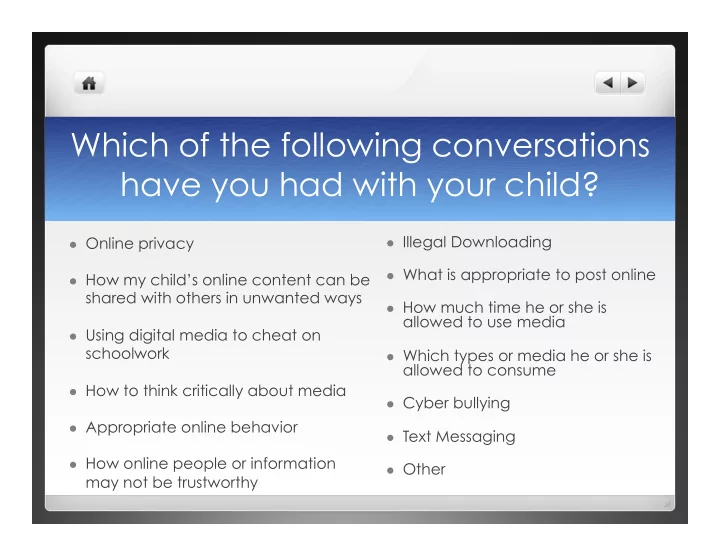
Which of the following conversations have you had with your child?

l Online privacy l How my child’s online content can be

shared with others in unwanted ways

l Using digital media to cheat on

schoolwork

l How to think critically about media l Appropriate online behavior l How online people or information

may not be trustworthy

l Illegal Downloading l What is appropriate to post online l How much time he or she is

allowed to use media

l Which types or media he or she is

allowed to consume

l Cyber bullying l Text Messaging l Other

slide-2
SLIDE 2

GAME ON: Promoting Safe and Appropriate Uses of Technology

Barb Micucci – Caley Elementary School Jessica Vicente – Candlebrook Elementary School

slide-3
SLIDE 3

Agenda

l Welcome and introductions! l Areas of discussion

l Social Media l Gaming l Apps l Digital Citizenship l Your child’s “Digital Footprint” l Staying safe online

l Questions and Comments

slide-4
SLIDE 4

What is media?

“Media refers to the messages and images that we consume and create, as well as the technology used to consume and create these messages. This includes TV, movies, video games, books, magazines, the internet, cell phones and more.”

slide-5
SLIDE 5

What concerns you most about technology, media and your child?

slide-6
SLIDE 6

Social Media

  • Facilitates communication between friends
  • Easy way to share their lives with family and friends
  • Provides an opportunity to explore new interests and try on

different identities

  • Place to communicate outside of adult supervision
  • Increases school engagement and communication
  • Place to seek out information
slide-7
SLIDE 7

Kids Social Media Sites

Caley Candlebrook

l Facebook

8% (3) 0% (0)

l Twitter

3% (1) 0% (0)

l Instagram

10% (4) 4% (2)

l Snapchat

3% (1) 4% (2)

l Kik

2% (1) 3% (1)

l No access

73% (29) 87% (40)

l Other

3% (1) 2% (1)

slide-8
SLIDE 8

Risks

l Contacted by strangers l Oversharing – information, pictures, videos l What you put out there can be viewed by everyone l Kids afraid to tell parents about uncomfortable stuff for fear of

having computer privileges taken away

l Kids don’t think before they post and may damage their

reputation

slide-9
SLIDE 9

GuardingKids.com – Teresa’s Story and Your Child’s Digital Footprint

slide-10
SLIDE 10

Social Media Tips

l Keep communication open l Tell your child if something feels uncomfortable share it with an

adult

l Be careful sharing personal information – everyone can see it l Look at your child’s page together online l Use privacy settings l Review your child’s friends list l Encourage balancing of time online to face-to-face time with

friends, family, playing sports, etc.

slide-11
SLIDE 11

Discussion starters

l Could you show me your online profile? l Do you use your real name or age when communicating with

  • thers online?

l What kinds of things do you post on your page? l Would you feel comfortable if I checked your profile?

slide-12
SLIDE 12

Gaming

l Form of entertainment l Uses your imagination l Employ problem solving strategies l Practice social skills through interactions with other gamers l Instills a competitive nature

slide-13
SLIDE 13

Game Rating System

slide-14
SLIDE 14

What do you think your kids said about talking to kids they don’t know online?

l Parents reported:

l Caley – 91% (32 parents) l Candlebrook – 89% (41 parents)

l Kids reported:

l Caley – 58% (91 kids out of 158

responses)

l Candlebrook – 58% (72 kids out of

124 responses)

slide-15
SLIDE 15

Risks

l Games may showcase violence l Gaming addiction or perseveration can occur l Playing with kids they don’t know l Online games with communication features open up possibility

  • f inappropriate content

l Even though some games may be free, they link to advertisers

that promote other products

slide-16
SLIDE 16

Tips

l Research games’ rating and content on www.esrb.org l Keep gaming consoles in an easy-to-supervise location l Tell your child never to give our personal information while gaming l Teach your child not to respond to anyone who is being rude or bullying while

playing

l Set rules about how long your child may play and types of games they can play l Set a technology curfew l Have your child check in with you before downloading any games l Check which safety features are available on you gaming system

slide-17
SLIDE 17

Discussion Starters

l Can we play some of your favorite games together? l How do you respond if someone bothers you while you are

gaming?

l How much do you let people know about you while gaming? l What kinds of people do you game with? l Do you feel safe while you are gaming online? Why or why

not?

slide-18
SLIDE 18

Apps

l Applications or software that can run on the internet, phones,

tablets or other electronic devices.

l No age requirements listed to download l Some are initially free, some cost money and/or allow for in-app

purchases

l Some applications need internet connection to run, others will run

  • nce downloaded onto the device

l Personal information can be collected from the app and possibly

shared with other companies.

slide-19
SLIDE 19

Risks

l Apps can collect and share personal information l Kids can spend real money on apps, even if the app was initially

free to download

l Apps may include links to social media that kids are unaware of l Apps allow users to interact with others who have downloaded

the app

l Apps may have links to other games or ads that have

inappropriate content for your child

slide-20
SLIDE 20

Tips

l Research app ratings and developmental appropriateness on Common Sense

Media (www.commonsensemedia.org), Apple’s App Rating System (4+, 9+, 12+, 17+) or the Entertainment Software Rating Board (http://www.esrb.org)

l Ask other families, check out your school and or library sites, and look through the

education section of the app stores to find appropriate apps for your child.

l Prior to downloading an app, view screen shots, read reviews and content ratings

and learn what information the app is collecting.

l Download and play the app with your kids! l Learn how to block content and childproof your devices. Check out your

manufacturers website to see how to disable or limit what your child has access to.

l Think about what you want or need to disable (safari, youtube, etc.) to keep your child safe

when you aren’t around

l Turn off app downloads so your child has to come to you prior to making any purchases l Disable in-app purchases to limit your child spending money in the application

slide-21
SLIDE 21

Discussion Starters

l What are some of your favorite sites? Let’s look to see if they

have any apps available for downloading.

l What should you do before deciding to download an app on

your device?

l What do you think some family rules should be for apps that you

are allowed to download and use?

l Do you ever play games with or talk to other people while you

are in an app?

slide-22
SLIDE 22

Digital Citizenship

l We are teaching our children to use media tools in a safe,

responsible and appropriate way.

l Think about this:

l What students are doing online now can have future impacts l More reflection is necessary l Be wary of what you read l Think before writing l Mistakes can be looked up now! l Set limits

slide-23
SLIDE 23

Cyberbullying

l Cyberbullying includes the following:

l Online fights with inappropriate language, harassment, posting cruel

messages or rumors about another, impersonating another person, sharing embarrassing information or messages, repeatedly sending someone messages, or intentionally excluding someone.

l No escape from victimization l Knowledge of technology doesn’t equal good judgment.

l Teach perspective taking and real world impact! l Teach personal guidelines for online involvement to prevent your

child from engaging in harmful behavior or becoming a target.

slide-24
SLIDE 24

4th Grade Cyberbullying Data

School Written Received Shared Cyberbullying Caley 13% 12% 4% 68% Candlebrook 15% 21% 9% 89%

l I have written text messages or sent emails to someone when I

have been angry.

l I have received unkind text messages or emails from other kids. l I have shared emails or text messages about another person to

  • thers.
slide-25
SLIDE 25
slide-26
SLIDE 26

Tips

l Talk to your child about how family values in the real world translate

to online behavior as well.

l Make consequences clear for violating appropriate online

behavior or participating in cyberbullying behavior.

l Teach your child the steps to report cyberbullying if they see it

happening:

l Save the evidence and then remove the material l Tell a trusted adult l Block the bully l Contact your service provider l Contact the police if the bully is making serious threats

slide-27
SLIDE 27

Discussion Starters

l What kind of values does our family have for treating others with kindness and

respect in the real world?

l Is this kind of behavior kind or respectful to others? l How would you feel if someone did this to you or your best friend? l What would happen if everybody did this online? l Would it be okay if you said or did something like that to someone in person or in

the “real world”?

l Do you realize that what you say online can have an impact or even damage

someone’s reputation?

l What would someone find out if he or she were to Google you online?

slide-28
SLIDE 28

What do you think your kids said about staying safe with media and technology?

slide-29
SLIDE 29

What do our kids know about keeping safe online?

l “Don’t tell people your passcode” l “Don’t talk to people you don’t know” l “Don’t send insulting emails” l “If someone says ‘Hey, want free VIP

just give me your password’, report that user”

l “Don’t click on things that have ads” l “Adults can act as kids” l “Never send a message online that will

hurt another person”

l “If someone is bothering you, tell an

adult”

l “Never play games with strangers and

don’t play social media without permission”

l “Do not make up a username or

password by yourself”

l “Never buy anything without

permission from your mom or dad”

slide-30
SLIDE 30

Online safety programs

l ParentsOnPatrol allows you to monitor your teens chat. You pick

keywords (eg: sex, drugs, suicide) that you find disturbing and the software emails you if your child has an online chat with those words appearing. The software allows you to block people you find questionable, or predatory.

l Razzul only allows child-friendly sites to be accessed. Razzul will

allow you to set reminders for your child that will pop up (eg: "4.30 pm, time to get ready for ballet") and also will allow you to limit the child's time per 24 hours on the computer and will keep track of the time even if it is spent in increments.

l Windows Live Family Safety allows your to manage your children’s

internet usage, see programs used and monitor time spent online.

slide-31
SLIDE 31

Tips

l Cyber 5 l Turn on parental controls l Talk about sharing information and their “Digital Footprint” or

“Digital Tattoo”

l Check out apps for kids that can be useful tools for learning

how to stay safe online

l Digital passport for kids from Common Sense Media l DHS (Dept. of Homeland Security) Flat Stanley and Flat Stella App

slide-32
SLIDE 32

This information comes from www.abcya.com

slide-33
SLIDE 33

Questions or Comments?

slide-34
SLIDE 34

For additional information, please visit:

Barb Micucci – www.umasd.org/micucci Jessica Vicente – www.umasd.org/vicente Look under “Game On” Parent Workshop Tab for resources, powerpoint presentation and additional handouts.