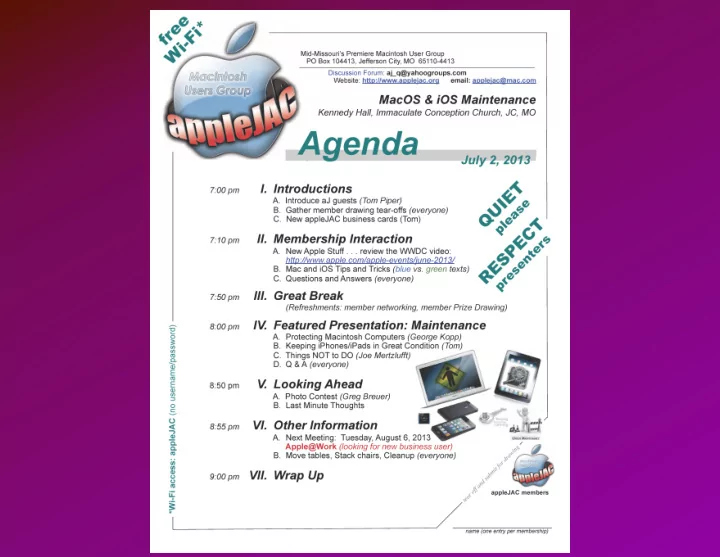
MacOS & iOS Maintenance MacOS Maintenance iOS Maintenance (the - - PowerPoint PPT Presentation

macos ios maintenance macos maintenance
SMART_READER_LITE
LIVE PREVIEW

MacOS & iOS Maintenance MacOS Maintenance iOS Maintenance (the - - PowerPoint PPT Presentation

MacOS & iOS Maintenance MacOS Maintenance iOS Maintenance (the iPad will be used as our example for all your iDevices including iPhones, iPod touches, and iPods) TOP TEN Your iPad is fragile Battery life is exhaustible TIPS


slide-1
SLIDE 1
slide-2
SLIDE 2

MacOS & iOS Maintenance

slide-3
SLIDE 3

MacOS Maintenance

slide-4
SLIDE 4

iOS Maintenance

(the iPad will be used as our example for all your iDevices including iPhones, iPod touches, and iPods)

  • Your iPad is fragile
  • Battery life is exhaustible
  • Keep your iPad clean
  • Delete unwanted apps
  • Clean out multitasking tray
  • Update your software
  • Backup your iPad
  • Reboot your iPad (hard/soft)
  • Restore your device
  • Protect your investment

TOP TEN TIPS

slide-5
SLIDE 5

Your iPad is fragile due to its large glass display and small size

  • Avoid dropping the iPad, especially from distances

greater than one foot

  • Always carry with the case closed and with both

hands on the device (but sure you have a case)

  • Do not set books or other heavy objects on top of

the iPad, nor leave it on a hot surface

  • Keep liquids away from the iPad. If something

should spill on it, blot immediately with absorbent material (cloth or paper towel)

slide-6
SLIDE 6

Your iPad is fragile due to its large glass display and small size (cont’d)

  • Use only your fingers on the screen. Keep all pens,

pencils, and other sharp objects away from the display (soft styluses are preferable)

  • Keep your hands clean. The less grease on your

fingers, the longer the screen will stay clean and the easier it will be to clearly view the content

  • There will be times when you and the iPad will leave

for remote experiences. Avoid sand and other particles that might scratch the display’s surface. Upon returning, clean with a soft cloth

slide-7
SLIDE 7

The iPad has a very long battery life, but it is exhaustable.

  • Practice battery conservation by putting the iPad

to sleep when not in use (briefly press the Power button at the top right corner of the device)

  • Also, reduce screen brightness, turn off Wi-Fi/

bluetooth/3G/4G when not in use

  • When returning the iPad to its usual storage

location, always attach the charging cable

  • Once per month, completely drain the battery,

then recharge to 100%

  • A portable USB battery device is highly

recommended, particularly when traveling

slide-8
SLIDE 8

To clean the iPad:

  • Unplug all cables and disconnect the iPad from any

accessories or docks

  • Turn off the iPad by holding the Sleep/Wake button

and sliding the onscreen slider off

  • Use a soft, slightly damp cloth, but be sure to not

allow moisture in any openings of the iPad

  • DO NOT use window cleaners . . . these

can damage the oleophobic (oil repelling) coating on the iPad screen and reduce its functionality

  • There are also special iPad cleaners like AppleJuice
slide-9
SLIDE 9

Delete Unwanted Apps Getting rid of unwanted apps clears up space on your iPad and gives you room for new apps. To delete an app, just follow these steps:

  • Tap on one of the apps you want to delete and

hold it until the apps get jiggly

  • You should see an X in the upper left hand corner
  • f that apps icon
  • Tap on that X to delete the app
  • Repeat as necessary
  • To exit deletion mode, hit your home button
slide-10
SLIDE 10

Clean Out Your Multitasking Tray

  • If things feel a bit sluggish, try turning off apps that

are running in the background. While the official story from Apple is that they have no effect, they can hog bandwidth

  • Double tap on the home button in order to make

the multitasking tray appear

  • Tap and hold your finger on the app you want to

shut down

  • Tap on the red minus sign
slide-11
SLIDE 11

Update Your Software Keeping your iPad up to date means having the best in security patches and the best software available. To update your iPad, just follow these steps:

  • If you have not updated iTunes, do that first
  • Connect your iPad to your computer using the cord
  • Once iTunes opens, click on the icon for your iPad
  • Click on the Summary tab
  • Click on the words “Check for Update”

iTunes will either tell you that you have your iPad up to date, or begin the update.

slide-12
SLIDE 12

Back Up Your iPad Backups are always a good thing to have just in case something happens and you need to clear out the system to begin again. Backups are also super

  • simple. Just follow these steps:
  • Plug your iPad into the computer to which it

regularly syncs

  • Click on the iPad icon on iTunes when it opens
  • Hold Control and click on the icon. A new menu will

show up on the screen

  • Choose Backup . . .
slide-13
SLIDE 13

How to Reset/Reboot Your iPad Resetting your iPad is a great way that you can troubleshoot minor issues with your software. It won’t delete your apps, but it can restore defaults that are set incorrectly:

  • Hold down the Power and Home button at the same

time (Power button only for “soft” reset)

  • Ignore the power slider and keep holding it until the

screen goes dark

  • Wait a few seconds, then hold down the Power

button until the apple appears, which means the “hard” reset has begun

slide-14
SLIDE 14

Restore Your iPad Restoring your iPad from a backup is just as easy as backing up, and it can be the preferred solution for any number of maladies that you may encounter. If you need to restore from a backup, then you will need to follow these simple steps:

  • Plug your iPad into the computer to which you

regularly sync

  • Click on your iPad icon on iTunes when it opens
  • Click on Restore (may have to select computer or

iCloud, if you did both) Encrypt your Backup to restore passwords and more

slide-15
SLIDE 15

Protect your investment . . .

  • Get a really good case and screen protector
  • Use an external keyboard
  • Try using a stylus instead of your finger
  • Use security apps like “Find My iPhone”
  • Turn on the devices’ Password feature
  • Use a password app like “1Password”
  • Invest in AppleCare
  • Sync your device frequently . . .