CSE1720 2. be able to access and to mutate the attributes of a Week - - PowerPoint PPT Presentation

cse1720
SMART_READER_LITE
LIVE PREVIEW

CSE1720 2. be able to access and to mutate the attributes of a Week - - PowerPoint PPT Presentation

1. be able to articulate how a Graphics2D object is an aggregate CSE1720 2. be able to access and to mutate the attributes of a Week 03, Lecture 06; Week 04, Lecture 07 Click to edit Master text styles Graphics2D object Second level Third level


slide-1
SLIDE 1

1

Click to edit Master text styles Second level Third level Fourth level Fifth level

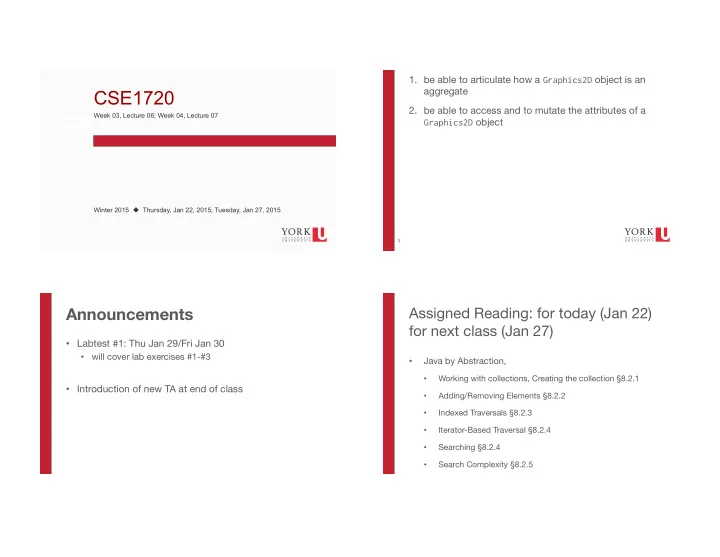
CSE1720

Week 03, Lecture 06; Week 04, Lecture 07 Winter 2015 ! Thursday, Jan 22, 2015; Tuesday, Jan 27, 2015

Announcements

  • Labtest #1: Thu Jan 29/Fri Jan 30
  • will cover lab exercises #1-#3
  • Introduction of new TA at end of class

3

  • 1. be able to articulate how a Graphics2D object is an

aggregate

  • 2. be able to access and to mutate the attributes of a

Graphics2D object

Assigned Reading: for today (Jan 22)
 for next class (Jan 27)

  • Java by Abstraction,
  • Working with collections, Creating the collection §8.2.1
  • Adding/Removing Elements §8.2.2
  • Indexed Traversals §8.2.3
  • Iterator-Based Traversal §8.2.4
  • Searching §8.2.4
  • Search Complexity §8.2.5
slide-2
SLIDE 2

5

  • Background Material:
  • sec 8.1.5, lab L8.2 (pp.329-332).
  • The Java Tutorials, Trail: 2D Graphics
  • http://docs.oracle.com/javase/tutorial/2d/index.html
  • These lecture slides provide a basic overview of that

material, enough to get you started with the lab exercises

The Big Picture

  • apps that use graphics must work with the

Window Manager (WM)

  • in order to understand how to use graphics, you

should have a basic understanding of the WM

7

  • The WM is used to implement GUI-based user

interfaces

  • The WM is part of the operating system
  • (e.g., Windows, Mac OS X, Linux has many, such as

Gnome, XFCE, …)

  • The WIMP paradigm: Windows, Icons,

Menus, Pointers

  • If an app wishes to use graphics, then the app

requires a container (window) for the graphics

How the WM works (in a nutshell)

  • The app requests a window from the window manager
  • The window manager decides whether a window is

shown

  • It is not up to the app, the app cedes autonomy to the WM
  • The WM allows the user to minimize, overlap, maximize the

windows on the desktop

  • The app can ask the WM about its screen real estate

(which can change over time)

  • The app tells the WM that it is in need of redrawing

(repaint);

  • the WM decides to redraw all of some of its windows
slide-3
SLIDE 3

9

  • The app specifies what should be drawn (the

WHAT)

  • The WM actually does the drawing (the HOW)
  • As the app developer, you need to understand

this separation

functionailty that actually accomplishes the graphical rendering specification of what should be shown graphically graphic display

Graphics2D class services

  • the Graphics2D object encapsulates the “HOW” part of

the drawing

  • the complexity of the “HOW” is hidden from the clients
  • all of the low level stuff that concerns graphics rendering

is hidden, e.g., how to translate drawing coordinates to screen coordinates, how to set the sub-pixel values in

  • rder to accomplish the different colours, etc

specification of what should be shown graphically graphic display

11

  • an app that has a window " can obtain access to the

window’s Graphics2D object

  • an app that does not have a window " no access to a

Graphics2D object

  • The Graphics2D class is part of java.awt (Abstract

Window Toolkit)

  • This Graphics2D class extends the Graphics class to

provide more sophisticated control over geometry, coordinate transformations, color management, and text layout.

Obtaining the Graphics2D reference

Suppose we have a RasterImage object with reference myPict Obtain a reference to window’s Graphics2D object:

Graphics2D graphicsObj = myPict.getGraphics2D();

How do we use the graphics2D object?

slide-4
SLIDE 4

13

Suppose we have a RasterImage object with reference myPict Obtain a reference to window’s Graphics2D object:

Graphics2D graphicsObj = myPict. getGraphics2D();

Now we specify to the graphics2D object what primitives we want drawn

graphicsObj.draw(…); graphicsObj.fill(…); provide(as(a(paramter(value(a( reference(to(s(Shape(object(

Instantiating a Shape object

int width = 20; int height = 50; int xPos = 5; int yPos = 15; Rectangle2D.Double shape1 = new Rectangle2D.Double(xPos, yPos, width, height);

The Rectangle shape is 20 units wide and 50 units high. The upper left hand corner is anchored at (5,15)

15

Rectangle2D.Double shape1 = new Rectangle2D.Double(xPos, yPos, width, height);

The Rectangle2D.Double shape is 20 units wide and 50 units high. What are these units? The units are “coordinate units” in the user space.

User Space

  • User space is the coordinate space in which graphics

primitives are specified

  • a device-independent logical coordinate system.
  • the coordinate space that your program uses.
  • The origin of user space is the upper-left corner of the

component’s drawing area.

  • All geometries passed into Java 2D rendering routines

are specified in user-space coordinates.

  • When it is time to render the graphics, a transformation

is applied to convert from user space to device space. 


slide-5
SLIDE 5

17

  • Device space – The coordinate system of an output

device such as a screen, window, or a printer

  • Your app can invoke the following to determine the

screen resolution in dots per inch:


Toolkit.getDefaultToolkit().getScreenResolution()

  • Depending on the screen resolution, one point in user space may

translate to several pixels in device space

  • If your screen resolution is 72, then there is likely to be 72

“coordinate units” in user space per inch. But this can vary.

http://docs.oracle.com/javase/tutorial/2d/overview/coordinate.html

User Space

  • The client specifies the graphic primitives to be drawn

in user space (in “coordinate units”)

  • Graphics2D class services translates the coordinates

in user space to coordinates in device space (in pixels)

19

see Example_DisplayMode

Instantiating a Shape object

Rectangle2D.Double shape1 = new Rectangle2D.Double(xPos, yPos, width, height);

The name of the class is weird – there is a dot in the middle

  • f it.

Rectangle2D.Double is a subclass of the class Rectangle2D Rectangle2D is a subclass of the class Shape Neither Shape nor Rectangle2D have constructors

slide-6
SLIDE 6

21

accepted” (Ch 9)

This is the “substitutability principle”

Rectangle2D.Double shape1 = new Rectangle2D.Double(xPos, yPos, width, height); Rectangle2D shape1 = new Rectangle2D.Double(xPos, yPos, width, height); Shape shape1 = new Rectangle2D.Double(xPos, yPos, width, height);

Graphics2D primitives

  • basic geometric shapes: draw(Shape) fill(Shape)
  • lines:

drawLine(int, int, int, int)

  • text:

drawString(String, int, int)

23

23

Shape Primitives

ref: http://java.sun.com/developer/technicalArticles/GUI/java2d/java2dpart1.html

slide-7
SLIDE 7

25

Additional settings:

  • the way the strokes are joined together
  • the appearance of the ends of lines


  • The current translation, rotation, scaling, and shearing values

Current Settings (I)

  • when any primitive is drawn, it is drawn with the

current settings of the Graphics2D object.

  • any primitive that is drawn is drawn with the current

settings until the settings change

  • the settings are determined by attribute values 


# thus we say that the state of the Graphics2D

  • bject determines the drawing settings.

The settings include:

  • the Paint to be used (the colour of the drawing pen)
  • the Stroke to be used (the width of the drawing pen)

27

graphicsObj.setPaint(Color.BLUE); graphicsObj.draw(shape1); graphicsObj.setPaint(Color.RED); graphicsObj.draw(shape1); This draws a red rectangle on top of the blue rectangle Any shape that is drawn is drawn with the current settings until the settings change

About Colour

  • Paint controls the colour of the drawing pen
  • The default colour is WHITE
  • Here’s how to change it (newer, better version):


graphicsObj.setPaint(Color.BLUE);


  • An older version:


graphicsObj.setColor(Color.BLUE);

slide-8
SLIDE 8

29

Point p1 = new Point(0, 0);
 Point p2 = new Point(50, 50);
 GradientPaint paint1 = 
 new GradientPaint(p1, Color.RED, p2, Color.MAGENTA, true);
 graphicsObj.setPaint(paint1);

Try it yourself!

Example: changing pen width

  • Stroke controls the width of the drawing pen
  • The default width is 1 unit (typically 1 pixel wide, so it is

teeny-tiny)

  • Here’s how to change it:


BasicStroke newStroke = new BasicStroke(4.0); graphicsObj.setStroke(newStroke);

Since Stroke is the parent class of BasicStroke, you can also write:

31

Once we instantiate a shape, there is no way to “move” it. Instead, just instantiate new shapes with different anchor points

  • You can move the origin of the coordinate system up/

down or left/right

  • this will make it appear as though the anchor of the

rectangle has moved

  • this is not recommended at this point, since we want a

fixed origin

About transformations

Once a shape is specified in user space, then any number

  • f transformations can be applied to it

For instance, here is a shear transformation of a rectangle There are also transformations to rotate and scale.

slide-9
SLIDE 9

33

  • Practise using all of these various methods and

experiment on your own.

  • Complete the lab exercises for week 2 & 3