Ch.4: User input and error handling Joakim Sundnes 1 , 2 1 Simula - - PDF document

ch 4 user input and error handling
SMART_READER_LITE
LIVE PREVIEW

Ch.4: User input and error handling Joakim Sundnes 1 , 2 1 Simula - - PDF document

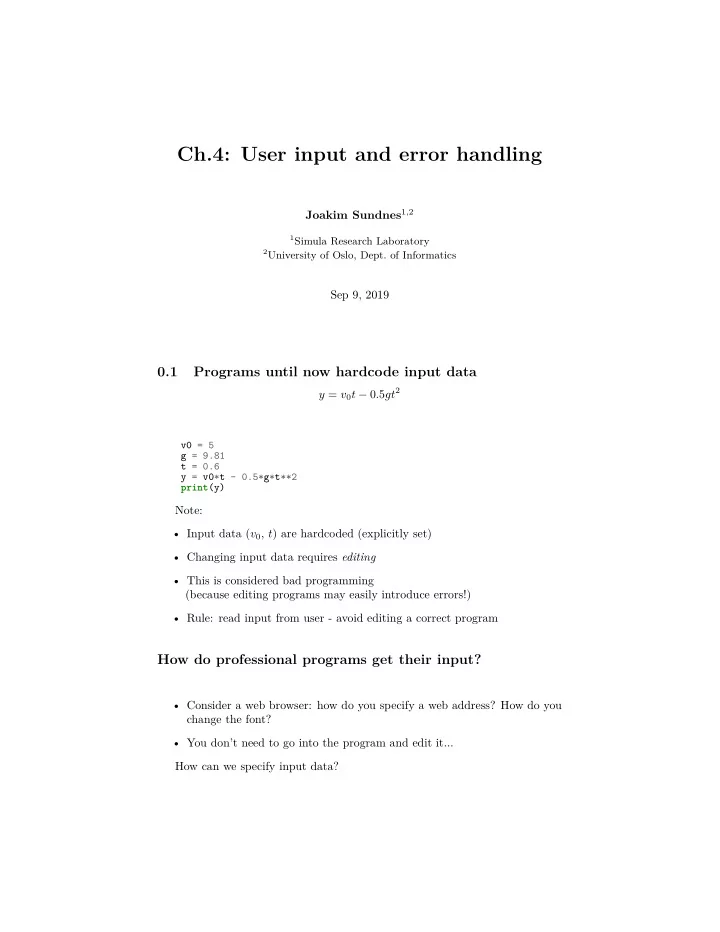
Ch.4: User input and error handling Joakim Sundnes 1 , 2 1 Simula Research Laboratory 2 University of Oslo, Dept. of Informatics Sep 9, 2019 0.1 Programs until now hardcode input data y = v 0 t 0 . 5 gt 2 v0 = 5 g = 9.81 t = 0.6 y = v0*t


slide-1
SLIDE 1

Ch.4: User input and error handling

Joakim Sundnes1,2

1Simula Research Laboratory 2University of Oslo, Dept. of Informatics

Sep 9, 2019

0.1 Programs until now hardcode input data

y = v0t − 0.5gt2

v0 = 5 g = 9.81 t = 0.6 y = v0*t - 0.5*g*t**2 print(y)

Note:

  • Input data (v0, t) are hardcoded (explicitly set)
  • Changing input data requires editing
  • This is considered bad programming

(because editing programs may easily introduce errors!)

  • Rule: read input from user - avoid editing a correct program

How do professional programs get their input?

  • Consider a web browser: how do you specify a web address? How do you

change the font?

  • You don’t need to go into the program and edit it...

How can we specify input data?

slide-2
SLIDE 2
  • Hardcode values
  • Ask the user questions and read answers
  • Read command-line arguments
  • Read data from a file

What about GUIs?

  • Most programs today fetch input data from graphical user interfaces (GUI),

consisting of windows and graphical elements on the screen: buttons, menus, text fields, etc.

  • Why don’t we learn to make such type of programs?

– GUI demands much extra complicated programming – Experienced users often prefer command-line input – Programs with command-line or file input can easily be combined with each other, this is difficult with GUI-based programs

  • Command-line input will probably fill all your needs in university courses

Getting input from questions and anwsers

Sample program:

C = 21; F = (9.0/5)*C + 32; print(F)

Idea: let the program ask the user a question "C=?", read the user’s answer, assign that answer to the variable C.

C = input('C=? ') # C becomes a string C = float(C) # convert to float so we can compute F = (9./5)*C + 32 print(F)

Running in a terminal window:

Terminal> python c2f_qa.py C=? 21 69.8

2

slide-3
SLIDE 3

The magic eval function turns a string into live code

  • eval(s) evaluates a string object s as if the string had been written

directly into the program

  • Gives a more flexible alternative to converting with float(s)

>>> s = '1+2' >>> r = eval(s) >>> r 3 >>> type(r) <type 'int'> >>> r = eval('[1, 6, 7.5] + [1, 2]') >>> r [1, 6, 7.5, 1, 2] >>> type(r) <type 'list'>

With eval, a little program can do much

Program input_adder.py:

i1 = eval(input('Give input: ')) i2 = eval(input('Give input: ')) r = i1 + i2 print (f'{type(i1)} + {type(i2)} becomes {type(r)} \nwith value {r}')

This great flexibility also quickly breaks programs...

Terminal> python input_adder.py

  • perand 1: (1,2)
  • perand 2: [3,4]

Traceback (most recent call last): File "add_input.py", line 3, in <module> r = i1 + i2 TypeError: can only concatenate tuple (not "list") to tuple Terminal> python input_adder.py

  • perand 1: one

Traceback (most recent call last): File "add_input.py", line 1, in <module> i1 = eval(raw_input('operand 1: ')) File "<string>", line 1, in <module> NameError: name 'one' is not defined Terminal> python input_adder.py

  • perand 1: 4
  • perand 2: 'Hello, World!'

Traceback (most recent call last): File "add_input.py", line 3, in <module> r = i1 + i2 TypeError: unsupported operand type(s) for +: 'int' and 'str'

3

slide-4
SLIDE 4

A similar magic function: exec

  • eval(s) evaluates an expression s
  • eval(’r = 1+1’) is illegal because this is a statement, not only an expres-

sion

  • ...but we can use exec to turn one or more complete statements into live

code:

statement = 'r = 1+1' # store statement in a string exec(statement) print(r) # prints 2

For longer code we can use multi-line strings:

somecode = ''' def f(t): term1 = exp(-a*t)*sin(w1*x) term2 = 2*sin(w2*x) return term1 + term2 ''' exec(somecode) # execute the string as Python code

Command-line arguments are words written after the pro- gram name

Examples on command-line arguments:

Terminal> python myprog.py arg1 arg2 arg3 ... Terminal> cp -r yourdir ../mydir Terminal> ls -l

Unix programs (rm, ls, cp, ...) make heavy use of command-line arguments, (see e.g. man ls). We shall do the same.

How to use a command-line argument in our sample pro- gram

C = 21; F = (9.0/5)*C + 32; print(F)

The user wants to specify C as a command-line argument after the name of the program when we run the program:

Terminal> python c2f_cml.py 21 69.8

Command-line arguments are the “words” after the program name, and they are stored in the list sys.argv:

import sys C = float(sys.argv[1]) # read 1st command-line argument F = 9.0*C/5 + 32 print(F)

4

slide-5
SLIDE 5

Command-line arguments are separated by blanks

Here is another program print_cml.py:

import sys; print(sys.argv)

Demonstrations:

Terminal> python print_cml.py 21 string with blanks 1.3 ['21', 'string', 'with', 'blanks', '1.3'] Terminal> python print_cml.py 21 "string with blanks" 1.3 ['21', 'string with blanks', '1.3']

Note 1: use quotes, as in "string with blanks", to override the rule that command-line arguments are separate by blanks. Note 2: all list elements are surrounded by quotes, demonstrating that command-line arguments are strings.

Example on reading 4 parameters from the command line

s(t) = s0 + v0t + 1 2at2 Input data: s0 (initial location), v0 (initial velocity), a (constant acceleration) and t (time) Output data: s (current location) Specify s0 = 1 m, v0 = 1 m/s, a = 0.5, m/s2, and t = 3 s on the command line:

Terminal> python location_cml.py 1 1 0.5 3 6.25

Program:

import sys s0 = float(sys.argv[1]) v0 = float(sys.argv[2]) a = float(sys.argv[3]) t = float(sys.argv[4]) s = s0 + v0*t + 0.5*a*t*t print(s)

Reading data from files

Scientific data are often available in files. We want to read the data into

  • bjects in a program to compute with the data.

5

slide-6
SLIDE 6

Example on a data file.

21.8 18.1 19 23 26 17.8

One number on each line. How can we read these numbers?

Reading a file line by line

Basic file reading:

infile = open('data.txt', 'r') # open file for line in infile: # do something with line infile.close() # close file

Compute the mean values of the numbers in the file:

infile = open('data.txt', 'r') # open file mean = 0 lines = 0 for line in infile: number = float(line) # line is string mean = mean + number lines += 1 infile.close() mean = mean/lines print(mean)

Alternative way to open a file

The modern with statement:

with open('data.txt', 'r') as infile: for line in infile: # process line

Notice:

  • All the code for processing the file is an indented block
  • The file is automatically closed

Alternative ways to read a file

Read all lines at once into a list of strings (lines):

lines = infile.readlines() infile.close() for line in lines: # process line

Reading the whole file into a string:

text = infile.read() # process the string text

6

slide-7
SLIDE 7

Most data files contain text mixed with numbers

File with data about rainfall:

Average rainfall (in mm) in Rome: 1188 months between 1782 and 1970 Jan 81.2 Feb 63.2 Mar 70.3 Apr 55.7 May 53.0 Jun 36.4 Jul 17.5 Aug 27.5 Sep 60.9 Oct 117.7 Nov 111.0 Dec 97.9 Year 792.9

How do we read such a file?

Processing each line with split()

  • The key idea to process each line is to split the line into words
  • Python’s split method is extremely useful for splitting strings

General recipe:

months = [] values = [] for line in infile: words = line.split() # split into words if words[0] != 'Year': months.append(words[0]) values.append(float(words[1]))

Become familiar with the split() method!

  • By default, split() will split words separated by space
  • We can specify any string s as separator: split(s)

>>> line = 'Oct 117.7' >>> words = line.split() >>> words ['Oct', '117.7,'] >>> type(words[1]) # string, not a number! <type 'str'> >>> line2 = 'output;from;excel' >>> line2.split(';') ['output', 'from', 'excel']

7

slide-8
SLIDE 8

Complete program for reading rainfall data

def extract_data(filename): infile = open(filename, 'r') infile.readline() # skip the first line months = [] rainfall = [] for line in infile: words = line.split() # words[0]: month, words[1]: rainfall months.append(words[0]) rainfall.append(float(words[1])) infile.close() months = months[:-1] # Drop the "Year" entry annual_avg = rainfall[-1] # Store the annual average rainfall = rainfall[:-1] # Redefine to contain monthly data return months, rainfall, annual_avg months, values, avg = extract_data('rainfall.dat') print('The average rainfall for the months:') for month, value in zip(months, values): print(month, value) print('The average rainfall for the year:', avg)

Writing data to file

Basic pattern:

  • utfile = open(filename, 'w')

# 'w' for writing for data in somelist:

  • utfile.write(sometext + '\n')
  • utfile.close()

Can append text to a file with open(filename, ’a’).

Example: Writing a table to file

Problem: We have a nested list (rows and columns):

data = \ [[ 0.75, 0.29619813, -0.29619813, -0.75 ], [ 0.29619813, 0.11697778, -0.11697778, -0.29619813], [-0.29619813, -0.11697778, 0.11697778, 0.29619813], [-0.75,

  • 0.29619813,

0.29619813, 0.75 ]]

Write these data to file in tabular form Solution:

  • utfile = open('tmp_table.dat', 'w')

for row in data: for column in row:

  • utfile.write(f'{column:14.8f}')
  • utfile.write('\n')
  • utfile.close()

8

slide-9
SLIDE 9

Back to a simple program that reads from the command line

Code:

import sys C = float(sys.argv[1]) F = 5./9*C + 32 print(F)

Next topic: How to handle wrong input from the user?

Our program stops with a strange error message if the command-line argument is missing

A user can easily use our program in a wrong way, e.g.,

Terminal> python c2f_cml.py Traceback (most recent call last): File "c2f_cml.py", line 2, in ? C = float(sys.argv[1]) IndexError: list index out of range

Why?

  • 1. The user forgot to provide a command-line argument
  • 2. sys.argv has then only one element, sys.argv[0], which is the program

name (c2f_cml.py)

  • 3. Index 1, in sys.argv[1], points to a non-existing element in the sys.argv

list

  • 4. Any index corresponding to a non-existing element in a list leads to

IndexError

We should handle errors in input!

How can we take control, explain what was wrong with the input, and stop the program without strange Python error messages?

# Program c2f_cml_if.py import sys if len(sys.argv) < 2: print 'You failed to provide a command-line arg.!' sys.exit(1) # abort F = 9.0*C/5 + 32 print(f'{C}C is {F:.1f}F') Terminal> python c2f_cml_if.py You failed to provide a command-line arg.!

9

slide-10
SLIDE 10

Exceptions as an alternative to if tests

  • Rather than test if something is wrong, recover from error, else do what

we indended to do, it is common in Python (and many other languages) to try to do what we indend to, and if it fails, we recover from the error

  • This principle makes use of a try-except block

try: <statements we intend to do> except: <statements for handling errors>

If something goes wrong in the try block, Python raises an exception and the execution jumps immediately to the except block.

The temperature conversion program with try-except

Try to read C from the command-line, if it fails, tell the user, and abort execution:

import sys try: C = float(sys.argv[1]) except: print 'You failed to provide a command-line arg.!' sys.exit(1) # abort F = 9.0*C/5 + 32 print(f'{C}C is {F:.1f}F')

Execution:

Terminal> python c2f_cml_except1.py You failed to provide a command-line arg.! Terminal> python c2f_cml_except1.py 21C You failed to provide a command-line arg.!

It is good programming style to test for specific exceptions

It is good programming style to test for specific exceptions:

try: C = float(sys.argv[1]) except IndexError: print 'You failed to provide a command-line arg.!'

If we have an index out of bounds in sys.argv, an IndexError exception is raised, and we jump to the except block. If any other exception arises, Python aborts the execution:

Terminal> python c2f_cml_tmp.py 21C Traceback (most recent call last): File "tmp.py", line 3, in <module> C = float(sys.argv[1]) ValueError: invalid literal for float(): 21C

10

slide-11
SLIDE 11

Improvement: test for IndexError and ValueError excep- tions

import sys try: C = float(sys.argv[1]) except IndexError: print 'No command-line argument for C!' sys.exit(1) # abort execution except ValueError: print(f'C must be a pure number, not "{sys.argv[1]}"') sys.exit(1) F = 9.0*C/5 + 32 print(f'{C}C is {F:.1f}F')

Executions:

Terminal> python c2f_cml_v3.py No command-line argument for C! Terminal> python c2f_cml_v3.py 21C Celsius degrees must be a pure number, not "21C"

The programmer can raise exceptions

  • Instead of just letting Python raise exceptions, we can raise our own and

tailor the message to the problem at hand

  • We provide two examples on this:

– catching an exception, but raising a new one with an improved (tai- lored) error message – raising an exception because of wrong input data

  • Baisc syntax: raise ExceptionType(message)

Examples on re-raising exceptions with better messages

def read_C(): try: C = float(sys.argv[1]) except IndexError: # re-raise, but with specific explanation: raise IndexError( 'Celsius degrees must be supplied on the command line') except ValueError: # re-raise, but with specific explanation:

11

slide-12
SLIDE 12

raise ValueError( f'Degrees must be number, notnot "{sys.argv[1]}"') # C is read correctly as a number, but can have wrong value: if C < -273.15: raise ValueError(f'C={C} is a non-physical value!') return C

Calling the previous function and running the program

try: C = read_C() except (IndexError, ValueError) as e: # print exception message and stop the program print e sys.exit(1)

Executions:

Terminal> c2f_cml.py Celsius degrees must be supplied on the command line Terminal> c2f_cml.py 21C Celsius degrees must be a pure number, not "21C" Terminal> c2f_cml.py -500 C=-500 is a non-physical value! Terminal> c2f_cml.py 21 21C is 69.8F

Making your own modules

We have frequently used modules like math and sys:

from math import log r = log(6) # call log function in math module import sys x = eval(sys.argv[1]) # access list argv in sys module

Characteristics of modules:

  • Collection of useful data and functions

(later also classes)

  • Functions in a module can be reused in many different programs
  • If you have some general functions that can be handy in more than one

program, make a module with these functions

  • It’s easy: just collect the functions you want in a file, and that’s a module!

12

slide-13
SLIDE 13

Case on making our own module

Here are formulas for computing with interest rates: A = A0

  • 1 +

p 360 · 100 n , (1) A0 = A

  • 1 +

p 360 · 100 −n , (2) n = ln A

A0

ln

  • 1 +

p 360·100

, (3) p = 360 · 100 A A0 1/n − 1

  • .

(4) A0: initial amount, p: percentage, n: days, A: final amount We want to make a module with these four functions.

First we make Python functions for the formuluas

from math import log as ln def present_amount(A0, p, n): return A0*(1 + p/(360.0*100))**n def initial_amount(A, p, n): return A*(1 + p/(360.0*100))**(-n) def days(A0, A, p): return ln(A/A0)/ln(1 + p/(360.0*100)) def annual_rate(A0, A, n): return 360*100*((A/A0)**(1.0/n) - 1)

Then we can make the module file

  • Collect the 4 functions in a file interest.py
  • Now interest.py is actually a module interest (!)

Example on use:

# How long time does it take to double an amount of money? from interest import days A0 = 1; A = 2; p = 5 n = days(A0, 2, p) years = n/365.0 print(f'Money has doubled after {years:.1f} years')

13

slide-14
SLIDE 14

Adding a test block in a module file

  • Module files can have an if test at the end containing a test block for testing
  • r demonstrating the module
  • The test block is not executed when the file is imported as a module in

another program

  • The test block is executed only when the file is run as a program

if __name__ == '__main__': # this test defineds the test block <block of statements>

In our case:

if __name__ == '__main__': A = 2.2133983053266699 A0 = 2.0 p = 5 n = 730 A_ = present_amount(A0, p, n) A0_ = initial_amount(A, p, n) d_ = days(A0, A, p) p_ = annual_rate(A0, A, n) print(f'A={A_} ({A}) A0={A0_} ({A}) n={n_} ({n}) p={p_} ({p})')

Test blocks are often collected in functions

Let’s make a real test function for what we had in the test block:

def test_all_functions(): # Define compatible values A = 2.2133983053266699; A0 = 2.0; p = 5; n = 730 # Given three of these, compute the remaining one # and compare with the correct value (in parenthesis) A_computed = present_amount(A0, p, n) A0_computed = initial_amount(A, p, n) n_computed = days(A0, A, p) p_computed = annual_rate(A0, A, n) def float_eq(a, b, tolerance=1E-12): """Return True if a == b within the tolerance.""" return abs(a - b) < tolerance success = float_eq(A_computed, A) and \ float_eq(A0_computed, A0) and \ float_eq(p_computed, p) and \ float_eq(n_computed, n) assert success # could add message here if desired if __name__ == '__main__': test_all_functions()

14

slide-15
SLIDE 15

How can Python find our new module?

  • If the module is in the same folder as the main program, everything is

simple and ok

  • Home-made modules are normally collected in a common folder, say

/Users/hpl/lib/python/mymods

  • In that case Python must be notified that our module is in that folder

Technique 1: add folder to PYTHONPATH in .bashrc:

export PYTHONPATH=$PYTHONPATH:/Users/hpl/lib/python/mymods

Technique 2: add folder to sys.path in the program:

sys.path.insert(0, '/Users/hpl/lib/python/mymods')

Technique 3: move the module file in a directory that Python already searches for libraries. 15