J subclass Graphics - - PowerPoint PPT Presentation

j
SMART_READER_LITE
LIVE PREVIEW

J subclass Graphics - - PowerPoint PPT Presentation

Graphics2D IS311 Programming Concepts J subclass Graphics


slide-1
SLIDE 1

J

AVA

Abstract Window Toolkit

(part 2: Graphics2D)

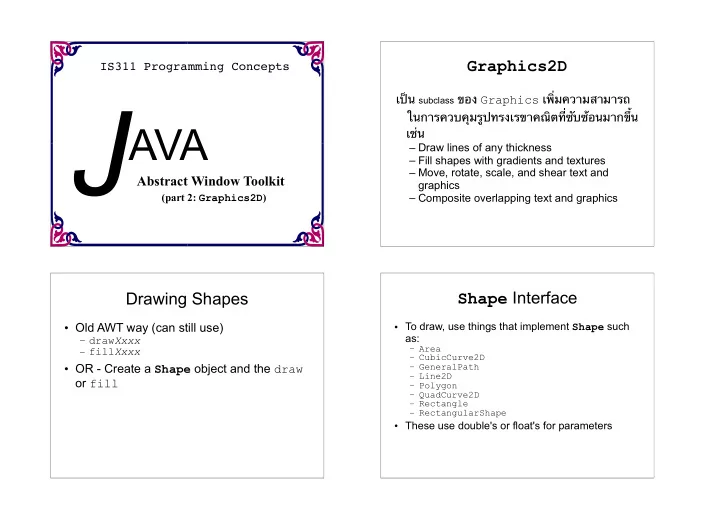
IS311 Programming Concepts

Graphics2D

เป่น subclass ของ Graphics เพิ้มความสามารถ ในการควบคูมรฺปทรงเรขาคณีตที้ซาบซ๊อนมากขึ๊น เช้น

– Draw lines of any thickness – Fill shapes with gradients and textures – Move, rotate, scale, and shear text and graphics – Composite overlapping text and graphics

Drawing Shapes

  • Old AWT way (can still use)

– drawXxxx – fillXxxx

  • OR - Create a Shape object and the draw
  • r fill

Shape Interface

  • To draw, use things that implement Shape such

as:

– Area – CubicCurve2D – GeneralPath – Line2D – Polygon – QuadCurve2D – Rectangle – RectangularShape

  • These use double's or float's for parameters
slide-2
SLIDE 2

Package java.awt.geom

Classes and interfaces related to the definition of geometric primitives:

AffineTransform Arc2D Arc2D.Double Arc2D.Float Area CubicCurve2D CubicCurve2D.Double CubicCurve2D.Float Dimension2D Ellipse2D Ellipse2D.Double Ellipse2D.Float FlatteningPathIterator GeneralPath Line2D Line2D.Double Line2D.Float PathIterator Point2D Point2D.Double Point2D.Float QuadCurve2D QuadCurve2D.Double QuadCurve2D.Float Rectangle2D Rectangle2D.Double Rectangle2D.Float RectangularShape RoundRectangle2D RoundRectangle2D.Double RoundRectangle2D.Float

Graphics2D object

  • Used to draw Shape objects
  • Has rendering attributes:

– Pen Style (solid, dotted, dashed) – Fill – Compositing (used when objects overlap) – Transform (scale, rotate, translate, shear) – Clip area – Font

Graphics2D – setting attributes

  • setStroke()

pen style that is applied to the outline of a shape

  • setPaint()

fill style that is applied to a shape's interior

  • setComposite() compositing style that is used when rendered
  • bjects overlap existing objects
  • setTransform() transform that is applied during rendering to

convert the rendered object from user space to device-space coordinates

  • setClip()

restricts rendering to the area within the outline of the Shape

  • setFont()

font used to convert text strings to glyphs

Graphics2D Rendering Methods

  • draw

– renders outline of graphics primitive using stroke and paint attributes

  • fill

– fills shape with given paint attribute (color or pattern)

  • drawString

– draw string with given font and paint attribute

  • drawImage

– draw an image

slide-3
SLIDE 3

Graphics2D shape methods

  • public void draw(Shape s)


Draws the outline of the given shape using this Graphics2D's current pen.


  • public void fill(Shape s)


Draws outline and fills inside of given shape.


  • rotate, scale, translate, shear, transform


Perform various coordinate transformations on the Graphics2D context.

Shapes (in package java.awt.geom)

  • Arc2D.Double(double x, double y, double w, 


double h, double start,
 double extent, int type)
 An arc, which is a portion of an ellipse.

  • Ellipse2D.Double(double x, double y,


double w, double h)
 An ellipse, which is a generalization of a circle.

  • Line2D.Double(double x1, double y1, double x2,


double y2)
 Line2D.Double(Point p1, Point p2)
 A line between two points.

Shapes

  • Rectangle2D.Double(double x, double y,


double w, double h)
 A rectangle, which is a generalization of a square.

  • RoundRectangle2D.Double(


double x, double y, double w,
 double h, double arcx, double arcy)
 A rounded rectangle.

  • GeneralPath()


A customizable polygon.

Methods of to all shapes

  • public boolean contains(double x, double y)


public boolean contains(Point2D p)

Whether the given point is contained inside the bounds of this shape.

  • public Rectangle getBounds()

A rectangle representing the bounding box around this shape.

  • public double getCenterX() / getCenterY()
  • public double getMinX() / getMinY()
  • public double getMaxX() / getMaxY()

Various corner or center coordinates within the shape.

  • public boolean intersects(double x, double y, double w,

double h)

  • public boolean intersects(Rectangle2D r)

Whether this shape touches the given rectangular region.

slide-4
SLIDE 4

Creating Shapes

public void paint(Graphics g) { Graphics2D g2d = (Graphics2D)g; double x = 50.0; double y = 30.0; double diameter=150.0; Ellipse2D.Double circle = new Ellipse2D.double(x, y, diameter, diameter); g2d.fill(circle); }

Graphics2D draw and fill

  • Arguments to the draw and fill must

implement the Shape interface

  • Graphics built using objects rather than

instructions

Rectangles, Ellipses and ARcs

  • Note that many Shape classes have inner

constructors

  • Use Rectangle2D inner classes to create:

– Rectangle2D.Double – Retangle2D.Float

  • Ellipse2D:

– Ellipse2D.Double – Ellipse2D.Float

  • Arc2D

– Arc2D.Double – Arc2D.Float

Arc2D – three different close types

  • Open
  • Pie
  • Chord
slide-5
SLIDE 5

Lines

  • Create a line using Line2D classes inner

class constructors

– Line2D.Float(), etc. – Line2D.Double(), etc.

  • QuadCurve2D

– 2 end points and a control points

  • CubicCurve2D

– 2 end points and 2 control points

Bounds/Hit Testing

  • Shape has various contains() methods
  • Makes for easy user interaction

public void mouseClicked(MouseEvent e) { Point2D point = new Point2D.Double(e.getX(), e.getY()); if (shape.contains(point)) { showMessage(“Hit me!”); } }

Constructive Area Geometry

Constructive Area Geometry (CAG) is the process of creating new geometric shapes by performing boolean operations on existing ones. In the Java 2D API a special type of Shape called an Area supports boolean operations.

Union (Add) Intersection Subtraction Exclusive-or(XOR) A pear shape from
 several ellipses

Combining Shapes

  • Combine Shape objects using the Area class

– Area implements Shape – can draw using

Graphics2D

  • Create: new Area() or new Area(Shape s)
  • Combine:

– public void add(Area a) – public void intersect(Area a); – public void subtract(Area a); – public void exclusiveOr(Area a);

slide-6
SLIDE 6

Painting

  • Paint attribute of Graphics2D

– Goes way beyond the old color attribute (still useable) – getPaint, setPaint – Used when fill method is called on a shape – Arguments to setPaint must implement the Paint interface

Paint related Classes of AWT

  • Color

– Solid color – Same constants as in AWT: Color.red, Color.black, etc. or mix your own – Can be transparency

  • GradientPaint

– Gradient fill gradually combining two colors – Can create your own

  • TexturePaint

– Tiled image as a paint background

Colors and paints

  • java.awt.Color


(a simple single-colored paint)

– public Color(int r, int g, int b) – public Color(int r, int g, int b, int alpha)

  • a partially-transparent color (range 0-255, 0=transparent)

– public Color brighter(), darker() – public static Color black, blue, cyan, darkGray, gray, green, lightGray, magenta, orange, pink, red, white, yellow

  • java.awt.GradientPaint


(smooth transition between 2 colors)

– public GradientPaint(float x1, float y1, Color color1, float x2, float y2, Color color2)

  • java.awt.TexturePaint


(use an image as a "paint" background)

Compositing

  • Process of putting two pictures together
  • Every time object is drawn, source and

destination combination process is performed

  • Usually use source over destination
slide-7
SLIDE 7

Transparency

  • The AlphaComposite class encapsulates various

compositing styles, which determine how overlapping

  • bjects are rendered.
  • An AlphaComposite can also have an alpha value that

specifies the degree of transparency: alpha = 1.0 is totally opaque, alpha = 0.0 totally transparent (clear).

  • Assign transparency (alpha) values to drawing operations
  • Underlying graphics show through
  • Call setComposite of Graphics2D object
  • AlphaComposite.getInstance

Compositing Rules

AlphaComposite supports most of the standard Porter-Duff compositing rules shown in the following table.

The source pixels are rendered over the destination pixels Only the source pixels in the overlapping area are rendered Only the source pixels

  • utside of the overlapping

area are rendered If pixels in the source and the destination overlap,

  • nly the source pixels
  • utside of the overlapping

area are rendered If the alpha = 1.0, the pixels in the overlapping area are unchanged; if the alpha is 0.0, pixels in the overlapping area are cleared. If the alpha = 1.0, the pixels in the overlapping area are cleared; if the alpha is 0.0, the pixels in the overlapping area are unchanged

Using Local Fonts

  • Same logical fonts as in Java 1.1

– Serif, SansSerif, Monospaced, Dialog, DialogInput

  • Also, arbitrary local fonts

– Must lookup entire list

  • May take awhile

– Use GraphicsEnvironment methods

  • getAvailableFontFamilyNames
  • getAllFonts

Printing All Font Names

GraphicsEnvironment env =

GraphicsEnvironment.getLocalGraphicsEnvironment(); String[] fontNames = env.getAvailableFontFamilyName(); System.out.println("Available Fonts:"); for(int i=0; i<fontNames.length; i++) System.out.println(" " + fontNames[i]);

slide-8
SLIDE 8

Drawing With Local Fonts - Example

  • Query the available fonts using

getAvailableFontNames of GraphicsEnvironment

  • Set the font in the Graphcis2D object
  • Call g2d.drawString method

Stroke Styles in Java 2D

  • In the old Graphics class, could only do 1-pixel

wide lines, no control over how lines are joined

  • Much more flexibility in Java2D – can specify:

– Pen thickness – Dashing pattern – The way line segments are joined together

  • Create a BasicStroke object (several

constructors)

Strokes (pen styles)

Graphics2D

– public void setStroke(Stroke s)
 Sets type of drawing pen (color, width, style)
 that will be used by this Graphics2D.

  • java.awt.BasicStroke

A pen stroke for drawing outlines

– public BasicStroke(float width) – public BasicStroke(float width, int cap,
 int join) – public BasicStroke(float width, int cap,
 int join, float miterlimit, 
 float[] dash, float dash_phase)

  • cap: CAP_BUTT, CAP_ROUND, CAP_SQUARE
  • join: JOIN_BEVEL, JOIN_MITER, JOIN_ROUND

Coordinate Transformations

  • Java 2D allows you to easily

– Translate – Rotate – Scale – Shear

  • Use java.awt.geom.AffineTransform
slide-9
SLIDE 9

Advanced: anti-aliasing

  • Onscreen text and shapes can have jagged edges, or aliases.

These can be removed by smoothing, or anti-aliasing, the panel.
 Graphics2D

  • public void setRenderingHint(


RenderingHints.Key key, Object value)

– Example:
 g2.setRenderingHint(RenderingHints.KEY_ANTIALIASING, RenderingHints.VALUE_ANTIALIAS_ON);

Other Capabilities of Java 2D

  • High-quality printing
  • Improved XOR mode
  • Custom color mixing
  • Fancy text operations
  • Low-level image processing
  • Animation

Resources

  • 2D Graphics Tutorial


https://docs.oracle.com/javase/tutorial/2d/