
SLIDE 1
Digital Commons OCR Project Guide
- 1. Contact lawit@listserv.uga.edu with your myID email to request access to the Adobe Cloud
- products. They will assist and instruct you in how to download and launch Adobe Acrobat on
your own device using UGA’s site license.
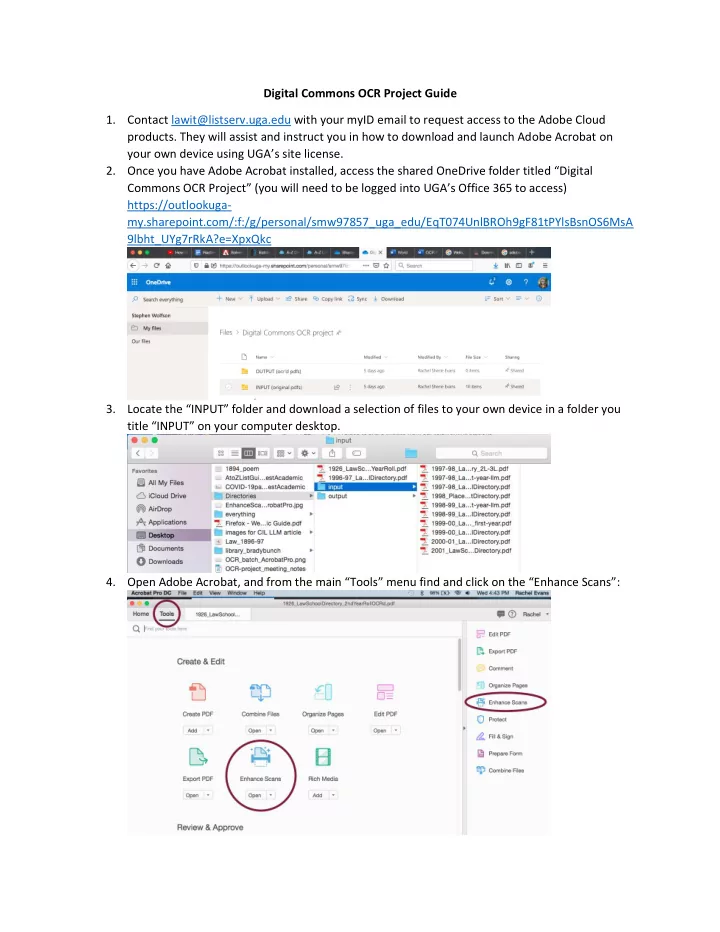
- 2. Once you have Adobe Acrobat installed, access the shared OneDrive folder titled “Digital
Commons OCR Project” (you will need to be logged into UGA’s Office 365 to access) https://outlookuga- my.sharepoint.com/:f:/g/personal/smw97857_uga_edu/EqT074UnlBROh9gF81tPYlsBsnOS6MsA 9lbht_UYg7rRkA?e=XpxQkc
- 3. Locate the “INPUT” folder and download a selection of files to your own device in a folder you
title “INPUT” on your computer desktop.
- 4. Open Adobe Acrobat, and from the main “Tools” menu find and click on the “Enhance Scans”: